Compiling rwProcMem33 into the Android Kernel
About the author. I’m Colin Xiao — an independent reverse engineer, mostly working solo on contract jobs. I dig into compiled code of every kind, including but not limited to: Android and iOS apps, x86/x64/ARM native binaries, packers and obfuscators, DRM and license checks, network protocols and APIs, crypto and signature algorithms, malware, game binaries, and embedded/IoT firmware. I also handle large-scale data collection and vulnerability research. If you have any project in mind, I’d be glad to take it on — whatever it is, as long as it’s within my wheelhouse. Just reach out. You can reach me on X at @colinxiao_lab or on Telegram at https://t.me/ColinXiao666.
This research is published for educational and defensive purposes. The target sample is anonymized throughout.
Compiling rwProcMem33 into the Android Kernel
To solve the Android challenge in a game-security competition’s qualifier round, I started learning how to use rwProcMem33 to set hardware breakpoints.
I came across rwProcMem33 in someone’s writeup for that Android challenge, where it was used to set hardware breakpoints on an Android phone to analyze anti-debug. The tool for hardware breakpoints on Android phones interested me, so I learned how to compile and use it.
To use rwProcMem33, setting up a build environment (an AOSP Android kernel source environment) is unavoidable — the kernel module ultimately runs in the Android phone’s Linux kernel, not a VM’s Linux kernel, so downloading the kernel source is necessary.
So this post is both a build-and-use note for the hardware-breakpoint tool and an Android kernel compilation note, recording the problems I hit and how I overcame them.
For faster downloads you can configure a proxy or switch mirrors — just avoid network failures aborting the download.
Docker came into the picture only because my VM’s shell environment broke and I couldn’t compile; if you trust your VM’s shell, you can skip Docker.
Setting up the build environment
VM configuration
I used an Ubuntu 22.04 VM, roughly configured as follows:
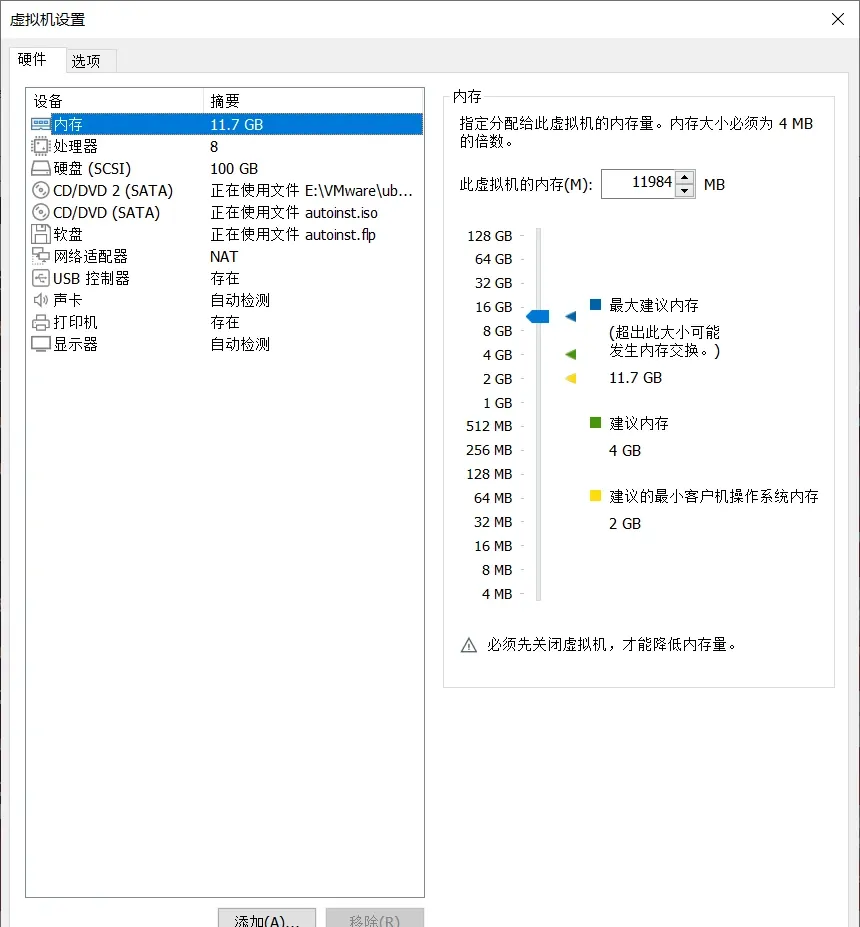
Configuring a proxy for the VM
Find the VM proxy address
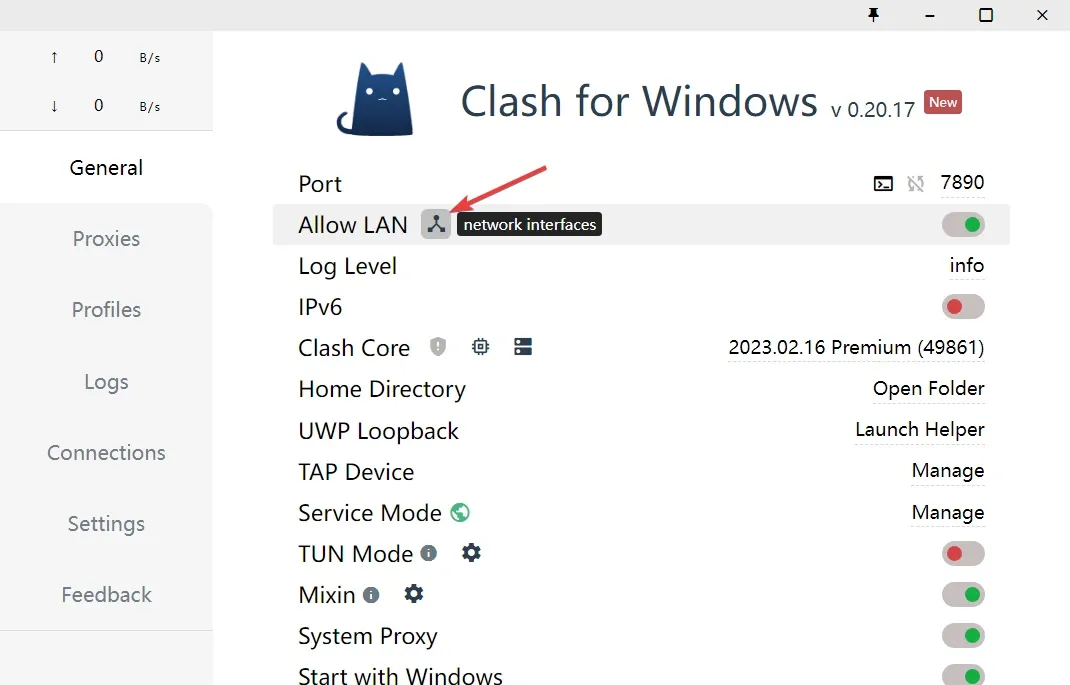
Open Clash for Windows, enable Allow LAN, then click network interfaces:
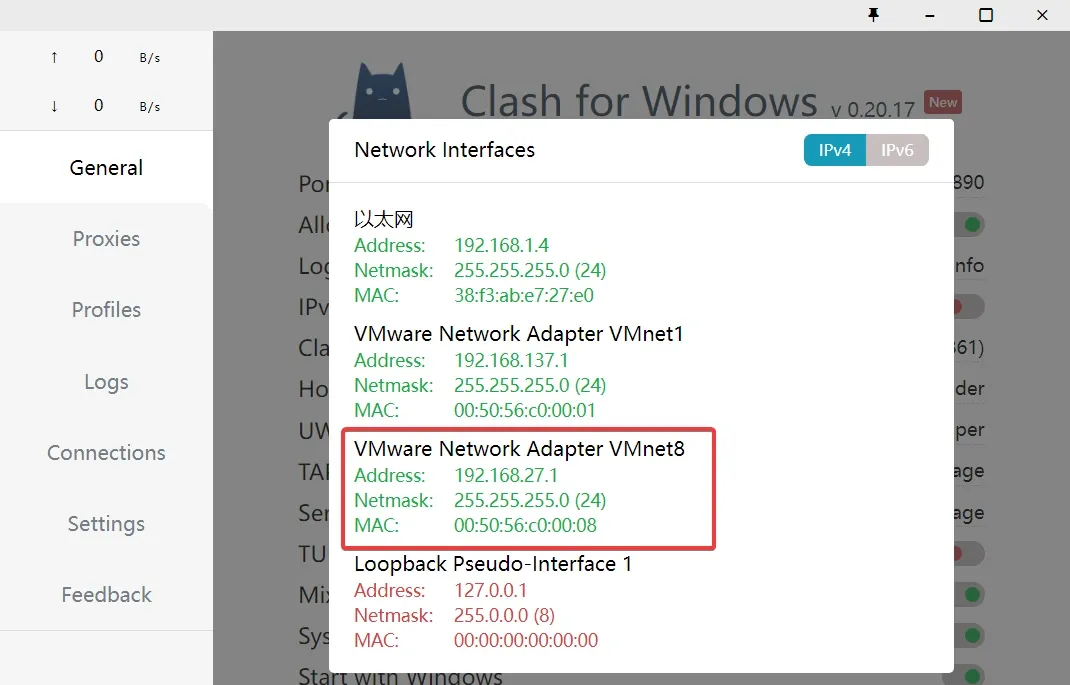
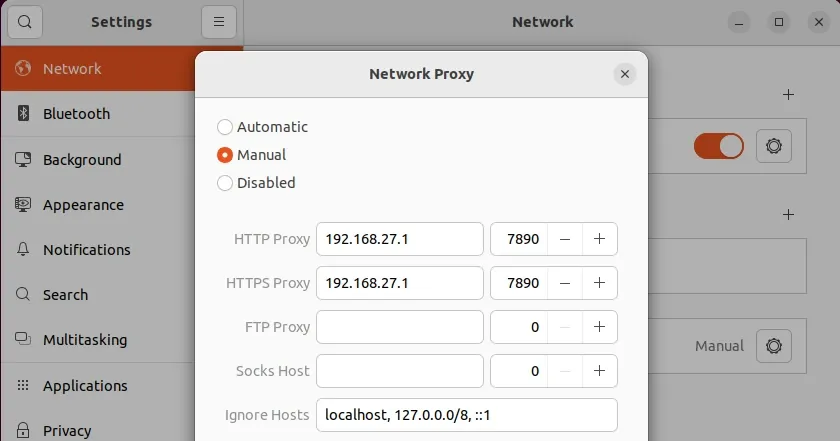
Note that my VM uses NAT networking, so the address to care about is VMnet8. For this VM, the proxy address is 192.168.27.1, and the port is the one shown in Clash’s Port field:
Enable the VM proxy
Click through the following options to reach the proxy configuration:
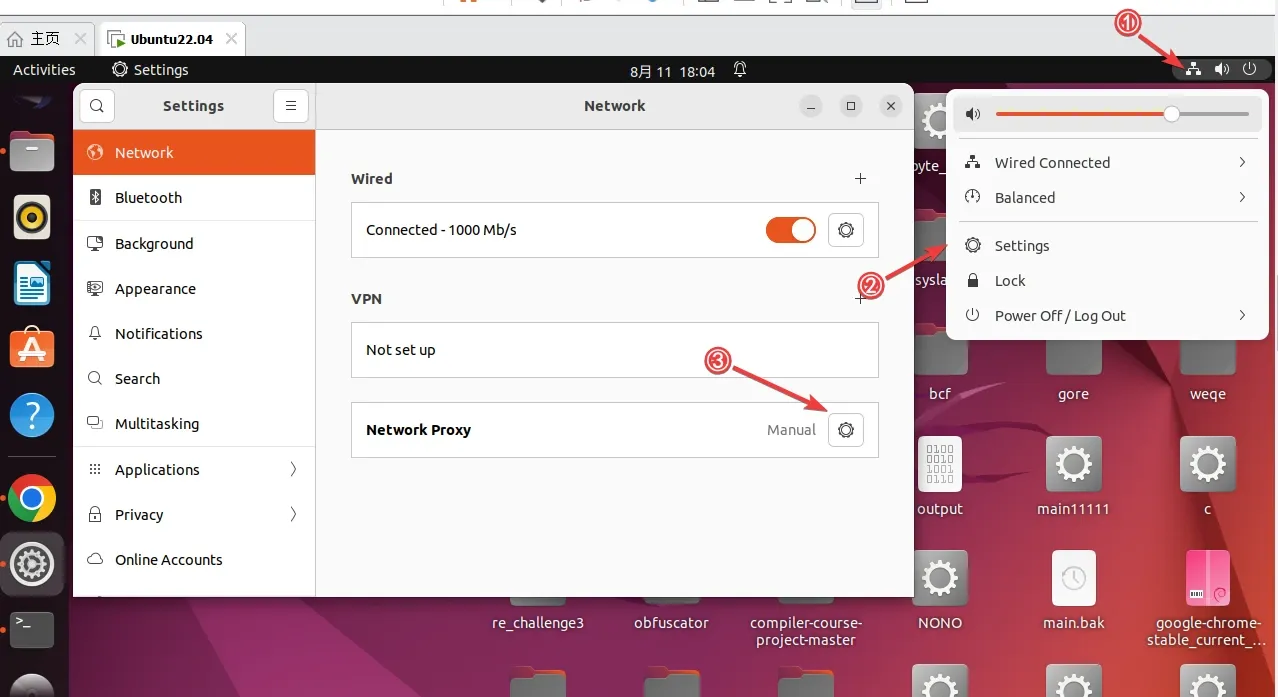
Enter the proxy address and save:
Configuring a Docker Ubuntu image
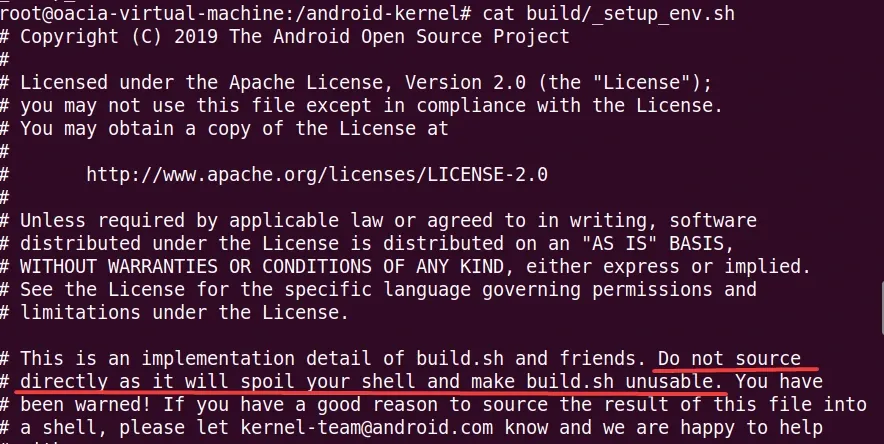
I accidentally ran
source _setup_env.sh, which wrecked the VM’s entire shell environment, andbuild.shkept failing. Glancing at_setup_env.sh, all I could do was laugh bitterly.
So I had to use Docker — and it turned out to work surprisingly well.
Install Docker
sudo apt install docker.ioConfigure the Docker pull proxy
sudo mkdir -p /etc/systemd/system/docker.service.d
sudo gedit /etc/systemd/system/docker.service.d/proxy.conf
Enter the following proxy server content:
[Service]
Environment="HTTP_PROXY=http://192.168.27.1:7890/"
Environment="HTTPS_PROXY=http://192.168.27.1:7890/"
Environment="NO_PROXY=localhost,127.0.0.1"
Refresh config and restart Docker
sudo systemctl daemon-reload
sudo systemctl restart docker
Configure the Docker image proxy
sudo mkdir -p ~/.docker/
sudo gedit ~/.docker/config.json
Enter the following content:
{
 "proxies":
 {
   "default":
   {
     "httpProxy": "http://192.168.27.1:7890/",
     "httpsProxy": "http://192.168.27.1:7890/",
     "noProxy": "localhost,127.0.0.1"
   }
 }
}
Download the Ubuntu image
docker pull ubuntuRun the Ubuntu image
docker run -it --net host --name Akernel ubuntu /bin/bashInstall sudo and vim
apt-get update
apt-get install vim
apt-get install sudo
Switch apt-get to the Alibaba mirror
sudo cp /etc/apt/sources.list /etc/apt/sources.list_backup
sudo vim /etc/apt/sources.list
Replace with the following content:
deb http://mirrors.aliyun.com/ubuntu/ jammy main restricted universe multiverse
deb-src http://mirrors.aliyun.com/ubuntu/ jammy main restricted universe multiverse

deb http://mirrors.aliyun.com/ubuntu/ jammy-security main restricted universe multiverse
deb-src http://mirrors.aliyun.com/ubuntu/ jammy-security main restricted universe multiverse

deb http://mirrors.aliyun.com/ubuntu/ jammy-updates main restricted universe multiverse
deb-src http://mirrors.aliyun.com/ubuntu/ jammy-updates main restricted universe multiverse

# deb http://mirrors.aliyun.com/ubuntu/ jammy-proposed main restricted universe multiverse
# deb-src http://mirrors.aliyun.com/ubuntu/ jammy-proposed main restricted universe multiverse

deb http://mirrors.aliyun.com/ubuntu/ jammy-backports main restricted universe multiverse
deb-src http://mirrors.aliyun.com/ubuntu/ jammy-backports main restricted universe multiverse
Then update apt-get to the latest:
sudo apt-get update
sudo apt-get upgrade
sudo apt-get install build-essential
Install the required libraries
sudo apt-get install git-core gnupg flex bison build-essential zip curl zlib1g-dev gcc-multilib g++-multilib libc6-dev-i386 libncurses5 lib32ncurses5-dev x11proto-core-dev libx11-dev lib32z1-dev libgl1-mesa-dev libxml2-utils xsltproc unzip fontconfig libssl-dev bc kmod cpio git curlConfigure git basics
git config --global user.email "xxx@gmail.com"
git config --global user.name "xxx"
git config --global http.proxy 192.168.27.1:7890
Install repo
mkdir ~/bin
curl https://storage.googleapis.com/git-repo-downloads/repo > ~/bin/repo
chmod a+x ~/bin/repo
Switch repo to the Tsinghua mirror and add repo to PATH
Open the PATH config file
sudo vim ~/.bashrcAdd to PATH
Add these three lines at the end and save:
# repo
export REPO_URL='https://mirrors.tuna.tsinghua.edu.cn/git/git-repo/'
export PATH="~/bin:$PATH"
Reload the config
source ~/.bashrcInstall Python
If python --version prints a version, skip this step. If Docker lacks python, install it inside Docker:
sudo apt-get install software-properties-common
add-apt-repository ppa:deadsnakes/ppa
sudo apt install python3.9
sudo ln -s /usr/bin/python3 /usr/bin/python
Resize swap
To avoid the compile failing from insufficient swap, resize the VM’s swap:
sudo swapoff /swapfile
sudo rm /swapfile

# set a 32g swap to avoid build failure; this takes a while — if no output appears, wait patiently
sudo dd if=/dev/zero of=/swapfile bs=1GB count=32
sudo chmod 600 /swapfile
sudo mkswap -f /swapfile
sudo swapon /swapfile
Downloading the kernel source
Check the kernel version
My Pixel 3’s kernel version is Linux version 4.9.270-g862f51bac900-ab7613625:
adb shell cat /proc/version
Linux version 4.9.270-g862f51bac900-ab7613625 (android-build@abfarm-east4-101) (Android (7284624, based on r416183b) clang version 12.0.5 (https://android.googlesource.com/toolchain/llvm-project c935d99d7cf2016289302412d708641d52d2f7ee)) #0 SMP PREEMPT Thu Aug 5 07:04:42 UTC 2021
Find the kernel source branch
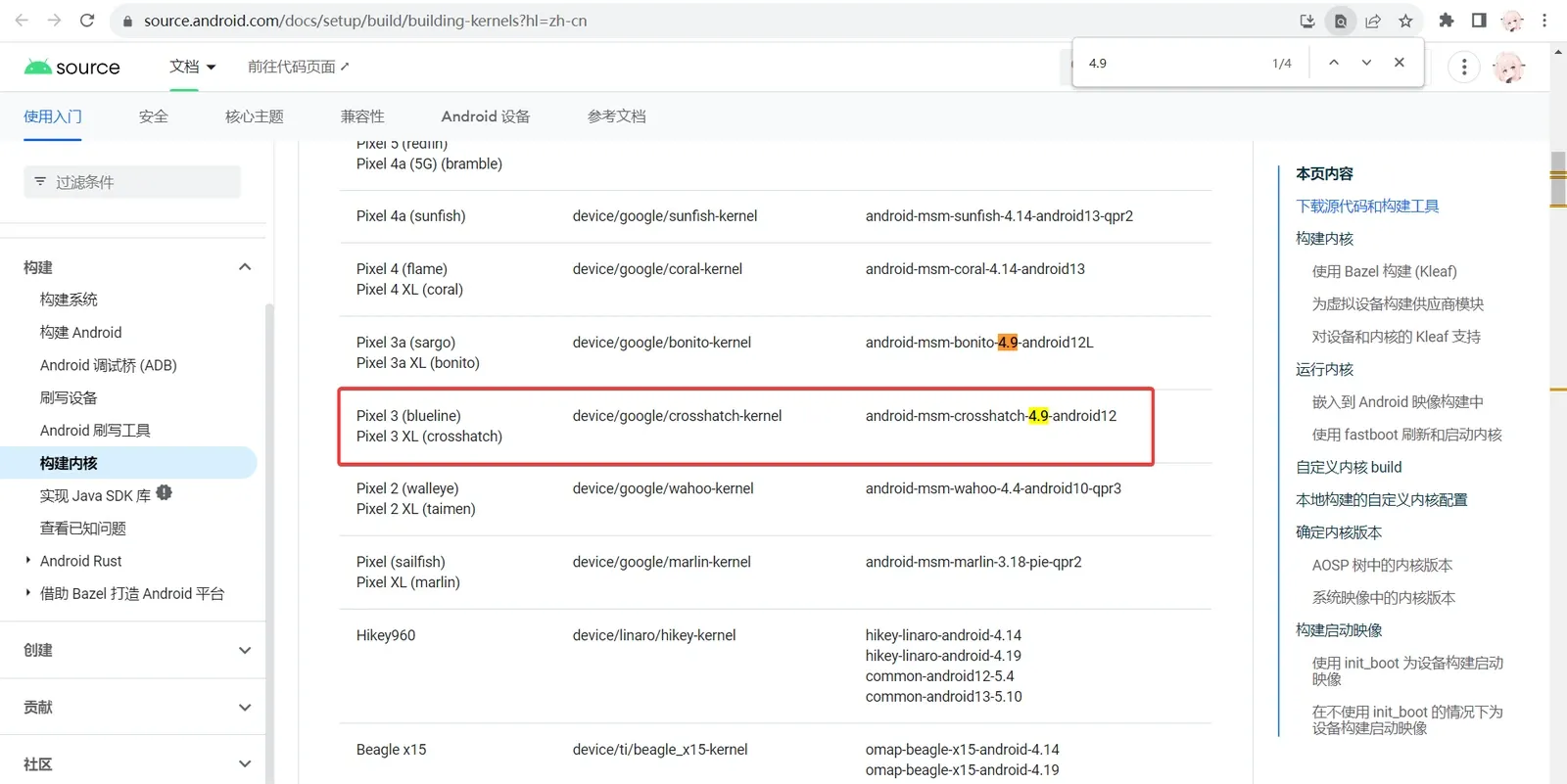
Go into the building-kernels page to find your source branch. My phone is a Pixel 3 with kernel 4.9, so the kernel source codename is android-msm-crosshatch-4.9:
Then search the Android kernel source list for android-msm-crosshatch-4.9:
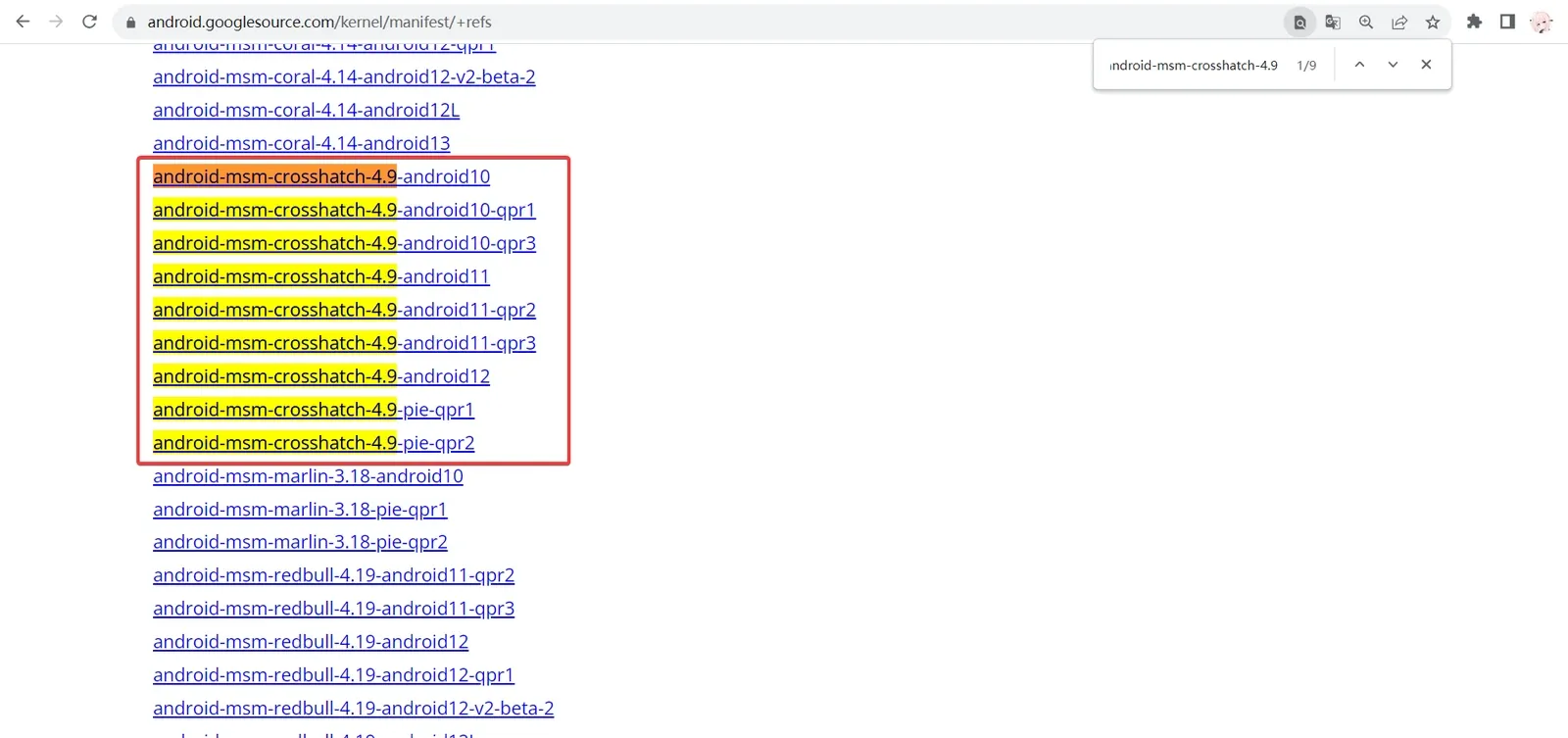
My phone is Android 12, so the kernel version I download is android-msm-crosshatch-4.9-android12.
Regarding qpr1 and qpr2 — first, what QPR means: the higher the number after QPR, the newer the kernel.
QPR, of course, is short for the Quarterly Platform Release, which Google first introduced with Android 12. These are not full system updates, but they bring a few select changes to the Pixels and other great high-end phones that opt to receive them.
One thing to note: if you want to download, say, android-msm-crosshatch-4.9-android10, first open the AOSP repo you want and check its default.xml — specifically <project path="build" name="kernel/build". If the revision value is main, absolutely do not download it, or you’ll find it can’t build at all — because the build repo and the kernel source repo are out of sync:
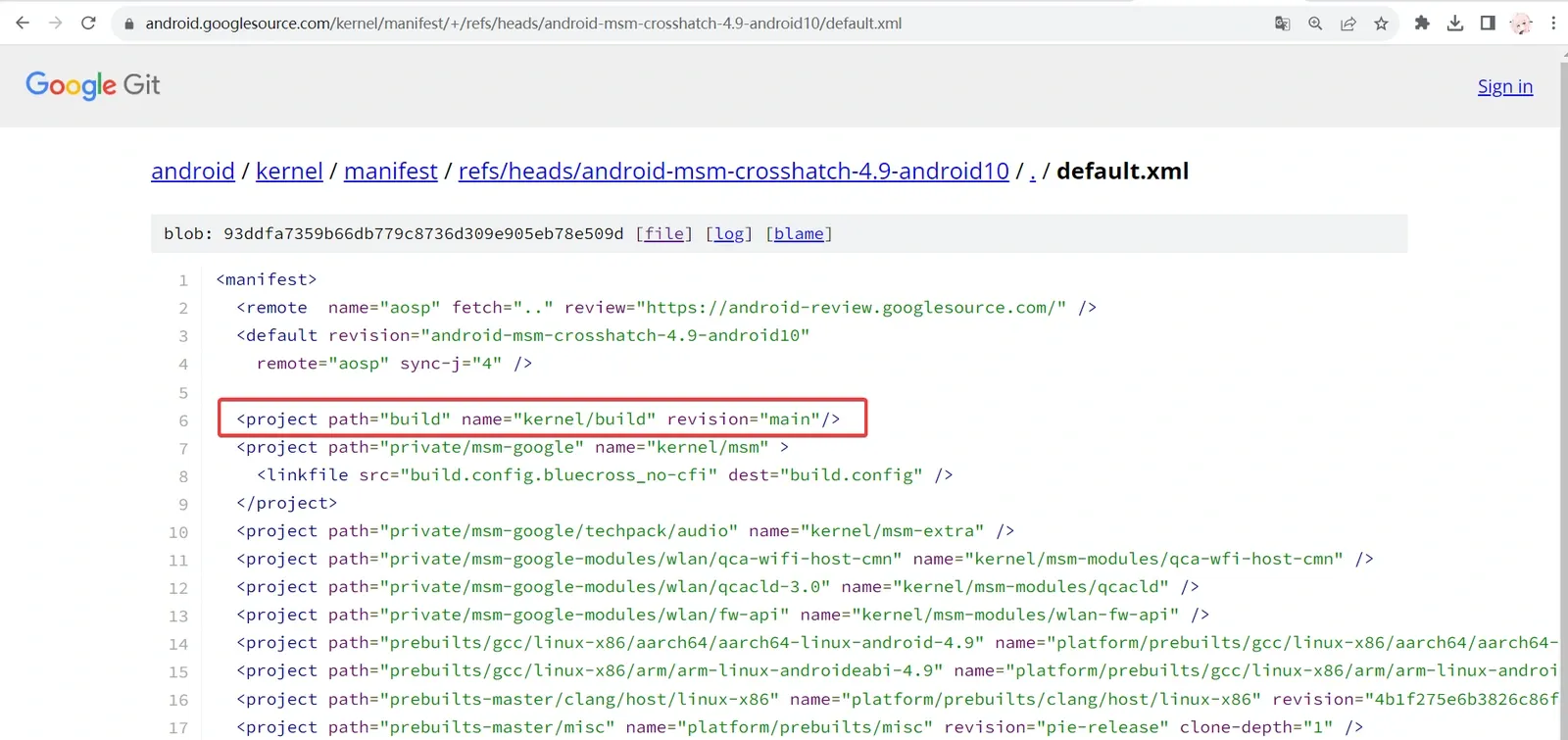
Alternatively, find the right build file in kernel/build yourself. But I’d suggest one-shot builds when possible — e.g., the android-msm-crosshatch-4.9-android12 I downloaded has build and the kernel source in sync. (Painful lesson: I stubbornly tried to build with the Android 9 kernel source and it simply wouldn’t build… finally I caved and flashed the phone to Android 12.)
Download the kernel source
mkdir android-kernel && cd android-kernel
repo init -u https://android.googlesource.com/kernel/manifest -b android-msm-crosshatch-4.9-android12
repo sync -j4
Switch the git branch
My phone’s Linux kernel version is Linux version 4.9.270-g862f51bac900-ab7613625; the part after g is the git branch, so the branch to check out is 862f51bac900:
cd private/msm-google
git checkout 862f51bac900
Compiling the kernel source
Unpack boot.img
First download Android Image Kitchen.
Then put boot.img in the tool’s root directory. Here boot.img is the boot.img extracted from the downloaded flashing package:
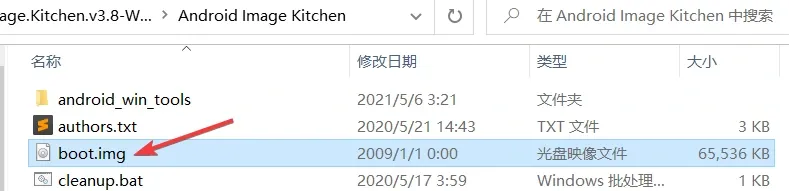
Run unpackimg.bat; don’t close the window afterward, because the output contains parameters you’ll need later (or copy the output into a txt):
Android Image Kitchen - UnpackImg Script
by osm0sis @ xda-developers

Supplied image: boot.img

Removing old work folders and files . . .

Setting up work folders . . .

Image type: AOSP

Signature with "AVBv2" type detected.

Splitting image to "split_img/" . . .

ANDROID! magic found at: 0
BOARD_KERNEL_CMDLINE console=ttyMSM0,115200n8 androidboot.console=ttyMSM0 printk.devkmsg=on msm_rtb.filter=0x237 ehci-hcd.park=3 service_locator.enable=1 cgroup.memory=nokmem lpm_levels.sleep_disabled=1 usbcore.autosuspend=7 loop.max_part=7 androidboot.boot_devices=soc/1d84000.ufshc androidboot.super_partition=system buildvariant=user
BOARD_KERNEL_BASE 0x00000000
BOARD_NAME
BOARD_PAGE_SIZE 4096
BOARD_HASH_TYPE sha1
BOARD_KERNEL_OFFSET 0x00008000
BOARD_RAMDISK_OFFSET 0x01000000
BOARD_SECOND_OFFSET 0x00000000
BOARD_TAGS_OFFSET 0x00000100
BOARD_OS_VERSION 12.0.0
BOARD_OS_PATCH_LEVEL 2021-10
BOARD_HEADER_VERSION 2
BOARD_HEADER_SIZE 1660
BOARD_DTB_SIZE 863100
BOARD_DTB_OFFSET 0x01f00000

Unpacking ramdisk to "ramdisk/" . . .

Compression used: gzip
56773 blocks

Done!
After unpackimg.bat finishes, enter split_img/, extract boot.img-ramdisk.cpio.gz, and copy the extracted boot.img-ramdisk.cpio to the kernel source root:
root@oacia-virtual-machine:/home/oacia/Desktop/# docker cp boot.img-ramdisk.cpio Akernel:/android-kernel/Download mkbootimg.py
Download mkbootimg.py and copy it into the kernel source root:
docker cp mkbootimg.py Akernel:/android-kernel/Modify build.sh
In the kernel source root, open build/build.sh and find this code:
echo "========================================================"
echo " Files copied to ${DIST_DIR}"
And add the following before those two lines:
if [ -f "${VENDOR_RAMDISK_BINARY}" ]; then
cp ${VENDOR_RAMDISK_BINARY} ${DIST_DIR}
fi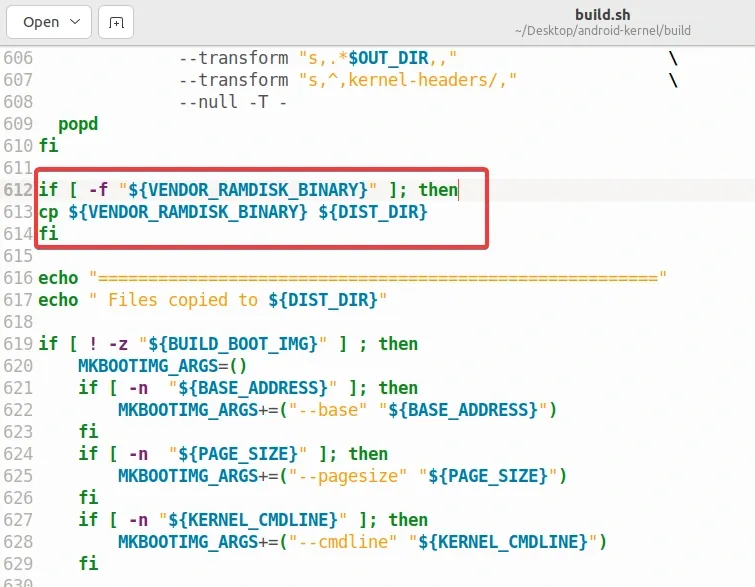
Download rwProcMem33
Download from:
https://github.com/abcz316/rwProcMem33Then copy the extracted folder into private/msm-google/drivers/ in the Docker kernel source tree:
docker cp rwProcMem33 Akernel:/android-kernel/private/msm-google/drivers/Modify rwProcMem33
ver_control.h
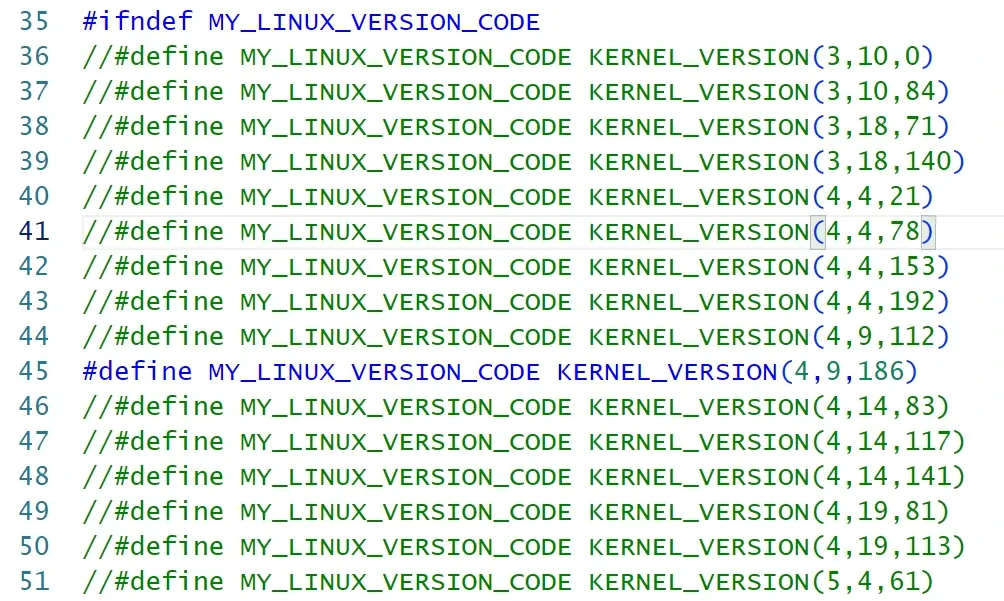
Switch MY_LINUX_VERSION_CODE to the matching Android kernel version. We already know the kernel version is Linux version 4.9.270-g862f51bac900-ab7613625, so in both private/msm-google/drivers/rwProcMem33/ver_control.h and private/msm-google/drivers/rwProcMem33/hwBreakpointProcModule/hwBreakpointProc/ver_control.h, switch to the 4.9 kernel. The rule for MY_LINUX_VERSION_CODE: pick the version number closest to your phone’s kernel version:
Before Linux 4.11, the Linux kernel uses a 4-level page table:
- Page Global Directory (PGD)
- Page Upper Directory (PUD)
- Page Middle Directory (PMD)
- Page Table (PT)
So for kernels below 4.11, which don’t support a 5-level page table, enable “use pagemap file to compute physical addresses” and comment out “use page table to compute physical addresses”, as shown:

Linux 4.11 extended the page table to five levels, adding the Page 4th Directory (P4D) between PGD and PUD.
So for kernels 4.11 and above, enable “use page table to compute physical addresses” and comment out “use pagemap file to compute physical addresses”, as shown:

linux_kernel_api folder
In rwProcMem33/linux_kernel_api, create a header file linux_kernel_api.h:

And write the following content:
#ifndef LINUX_KERNEL_API_H_
#define LINUX_KERNEL_API_H_
#include "../ver_control.h"
#if MY_LINUX_VERSION_CODE < KERNEL_VERSION(5,8,0)

long probe_kernel_read(void* dst, const void* src, size_t size);

MY_STATIC long x_probe_kernel_read(void* bounce, const char* ptr, size_t sz) {
	return probe_kernel_read(bounce, ptr, sz);
}

#endif

#if MY_LINUX_VERSION_CODE >= KERNEL_VERSION(5,8,0)

long copy_from_kernel_nofault(void* dst, const void* src, size_t size);

MY_STATIC long x_probe_kernel_read(void* bounce, const char* ptr, size_t sz) {
	return copy_from_kernel_nofault(bounce, ptr, sz);
}

#endif
#endif /* LINUX_KERNEL_API_H_ */
api_proxy.h
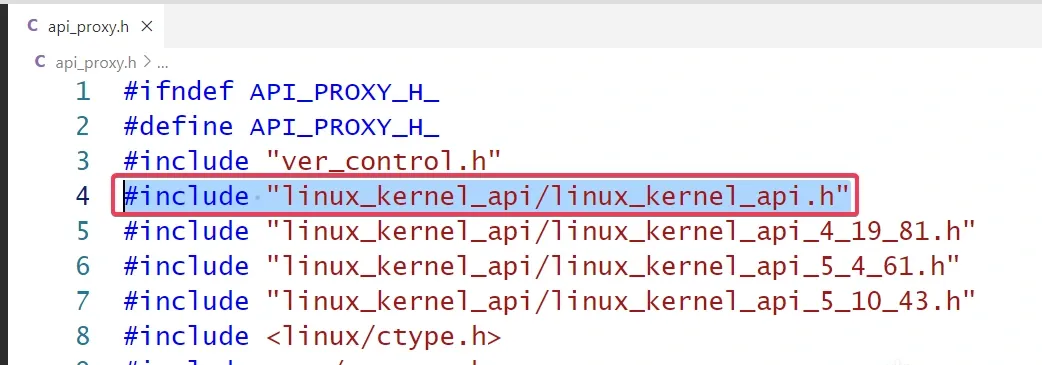
To include the linux_kernel_api.h header, add #include "linux_kernel_api/linux_kernel_api.h" near the top of api_proxy.h, as shown:
Modify the drivers Makefile
Add the following at the top of private/msm-google/drivers/Makefile:
obj-y += rwProcMem33/hwBreakpointProcModule/hwBreakpointProc/
obj-y += rwProcMem33/
Modify the msm-google Makefile
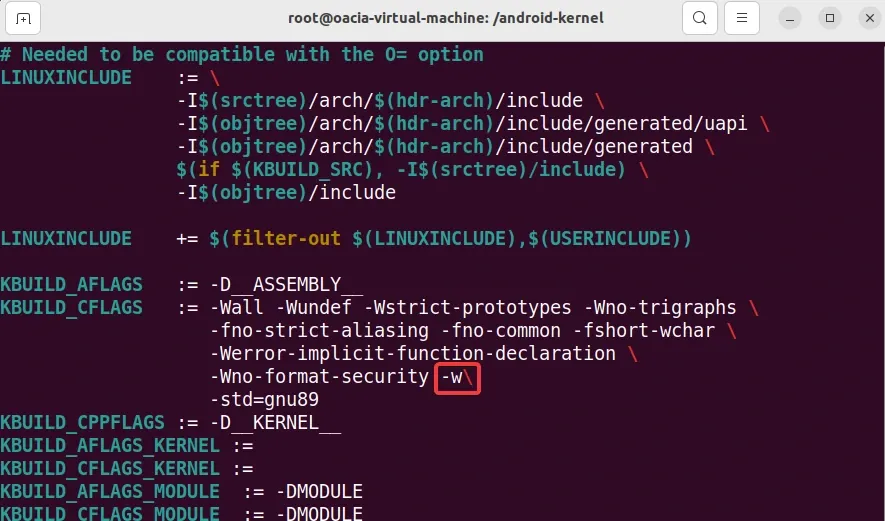
When compiling the rwProcMem33 kernel module, the kernel treats warnings as errors and stops, so modify the Makefile to ignore warnings.
In private/msm-google/Makefile, find the spot and add a -w after -Wno-format-security:
Start compiling
Open a terminal in the Android kernel source root and compile with:
The parameters are the ones printed by Android Image Kitchen after unpacking
boot.img— be sure to replace them with your own values!
The parameter mapping:
android-image-kitchen unpack parameter |
Value | Build command parameter |
|---|---|---|
| BOARD_KERNEL_CMDLINE | console=ttyMSM0,115200n8 androidboot.console=ttyMSM0 printk.devkmsg=on msm_rtb.filter=0x237 ehci-hcd.park=3 service_locator.enable=1 cgroup.memory=nokmem lpm_levels.sleep_disabled=1 usbcore.autosuspend=7 loop.max_part=7 androidboot.boot_devices=soc/1d84000.ufshc androidboot.super_partition=system buildvariant=user | KERNEL_CMDLINE |
| BOARD_KERNEL_BASE | 0x00000000 | BASE_ADDRESS |
| BOARD_PAGE_SIZE | 4096 | PAGE_SIZE |
| BOARD_HEADER_VERSION | 2 | BOOT_IMAGE_HEADER_VERSION |
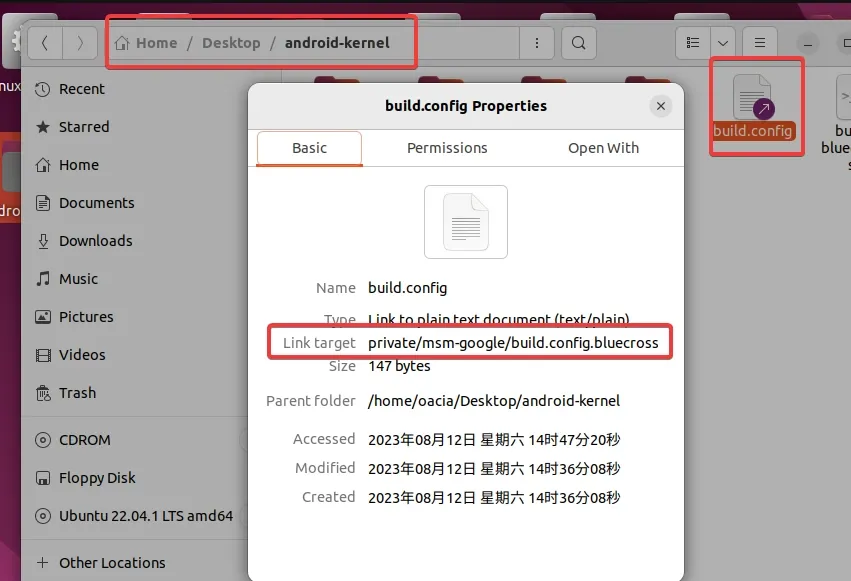
The build command’s BUILD_CONFIG is the config file that the build.config symlink in the AOSP source root points to:
So the final build command is:
BUILD_CONFIG=private/msm-google/build.config.bluecross BUILD_BOOT_IMG=1 MKBOOTIMG_PATH=mkbootimg.py VENDOR_RAMDISK_BINARY=boot.img-ramdisk.cpio KERNEL_BINARY=Image.lz4 BOOT_IMAGE_HEADER_VERSION=2 KERNEL_CMDLINE="console=ttyMSM0,115200n8 androidboot.console=ttyMSM0 printk.devkmsg=on msm_rtb.filter=0x237 ehci-hcd.park=3 service_locator.enable=1 cgroup.memory=nokmem lpm_levels.sleep_disabled=1 usbcore.autosuspend=7 loop.max_part=7 androidboot.boot_devices=soc/1d84000.ufshc androidboot.super_partition=system buildvariant=user" BASE_ADDRESS=0x00000000 PAGE_SIZE=4096 build/build.shAfter a wait, the build succeeds:
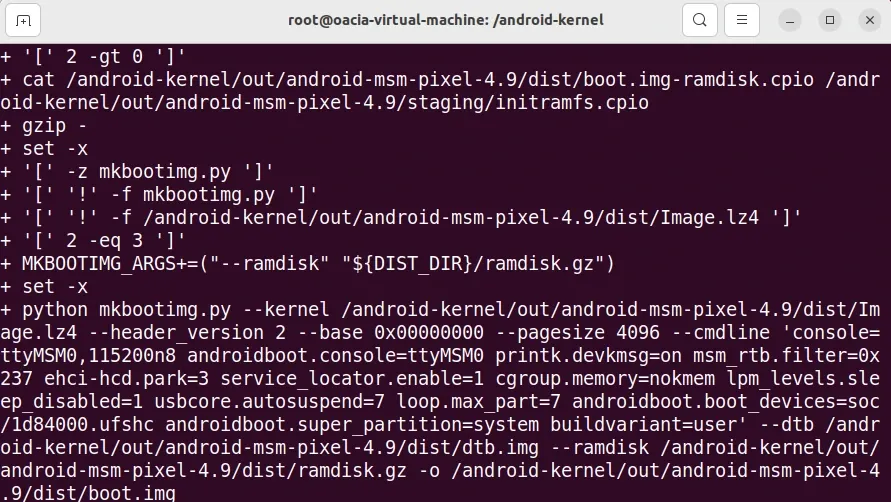
The generated boot.img is at /android-kernel/out/android-msm-pixel-4.9/dist/boot.img.
Patching boot.img with Magisk for root
Install Magisk:
adb install "D:\TOOLS\pixel3\Magisk-v26.1.apk"Push the kernel-source-built boot.img to the phone:
adb push boot.img /sdcard/Open Magisk on the phone and tap Install -> Select and Patch a File -> /sdcard/boot.img -> Start.
After patching, pull the patched boot.img to the computer:
adb pull /storage/emulated/0/Download/magisk_patched-xxxxx_xxxxx.imgFlashing the kernel
adb reboot bootloader
fastboot flash magisk_patched-xxxxx_xxxxx.img
fastboot reboot
Compiling the HwBpClient client
Enter rwProcMem33\hwBreakpointProcModule\testHwBpClient, and open testHwBpClient.vcxproj in Visual Studio.
The compiled binary must be 64-bit.
For a Windows-built HwBpClient, edit testHwBpClientDlg.cpp at this spot: change llX to I64X and %zu to I64d, otherwise input won’t be read correctly:
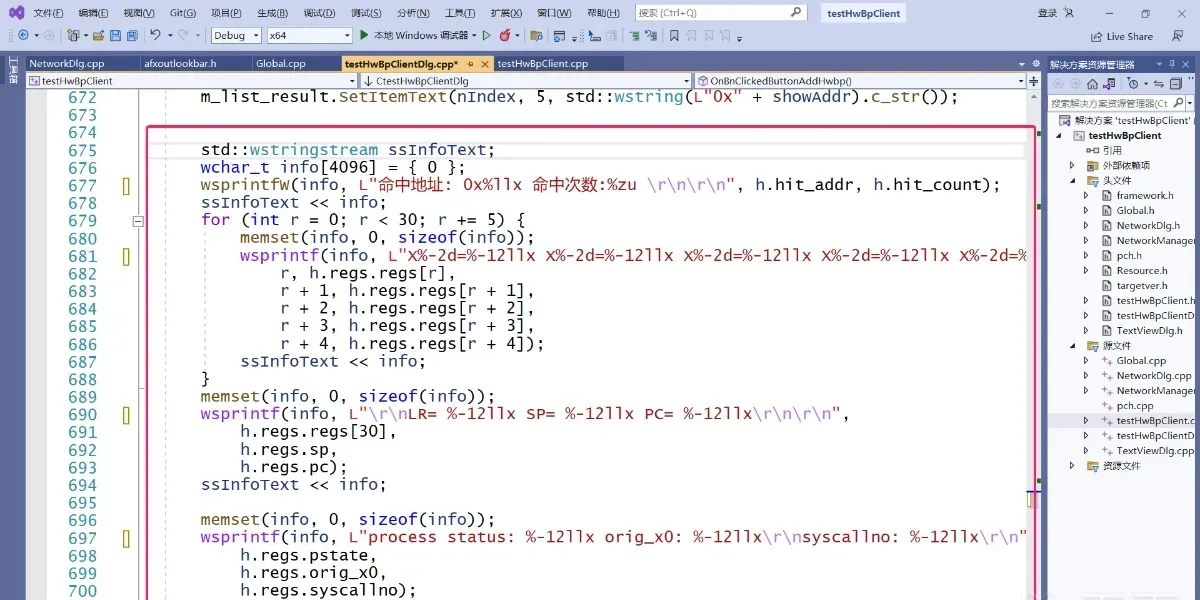
The reason is that C/C++ 64-bit output differs between Windows and Linux.
Linux:
printf("%lld/n",a);
printf("%llu/n",a);
printf("%llx/n",a);
Windows:
printf("%I64d/n",a);
printf("%I64u/n",a);
printf("%I64x/n",a);
After the change:
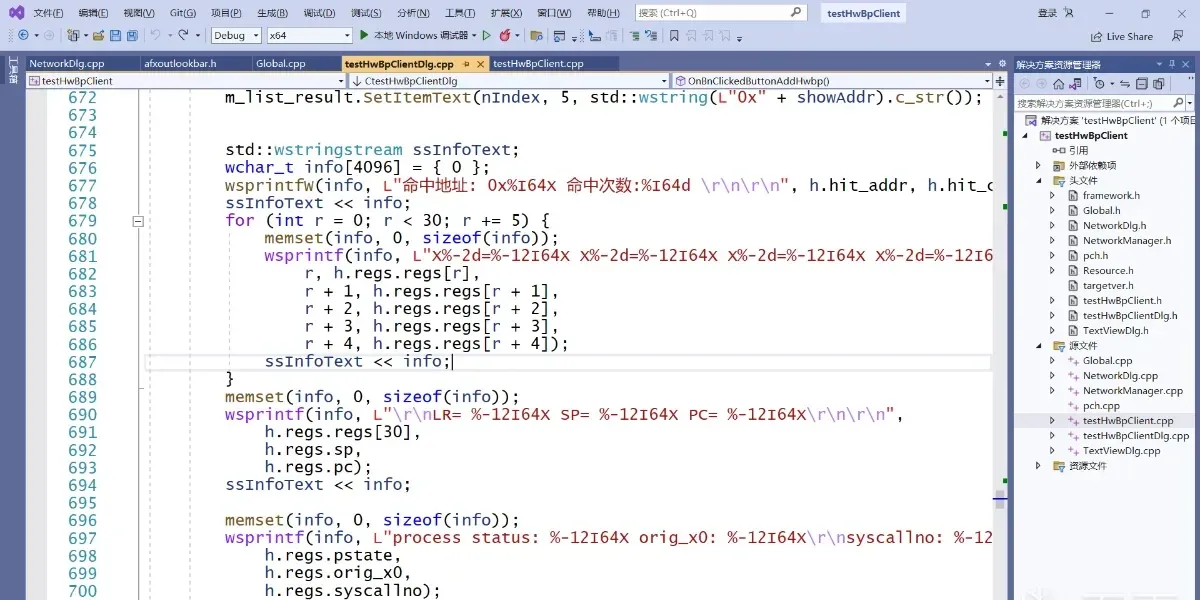
Then press Ctrl+B to build:
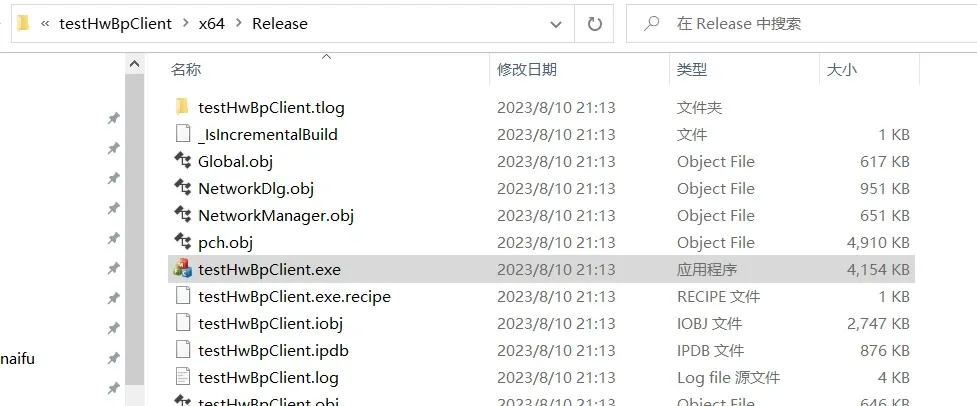
Compiling the HwBpServer server
Compiling the server needs the NDK, and the NDK must be on your PATH.
You can install the NDK via Android Studio: File -> Project Structure -> SDK Location, find Android NDK location, click Download. I used ndk25.2.9519653.
If you don’t have Android Studio, Google has NDK install instructions.
After installing the NDK, enter rwProcMem33\hwBreakpointProcModule\testHwBpServer\jni and run:
ndk-buildThat’s it. The output is in rwProcMem33\hwBreakpointProcModule\testHwBpServer\libs; pick the ELF matching your phone’s architecture and push it to the phone.
Get the phone’s IPv4 address
Connect your computer and the test phone to the same phone hotspot, then on the test phone open Settings -> WLAN, tap the advanced options of the connected hotspot to see the phone’s IP.
Run the HwBpServer server
Copy the compiled program to the phone and run it:
adb push rwProcMem33\hwBreakpointProcModule\testHwBpServer\libs\arm64-v8a\testHwBpServer.out /data/local/tmp
adb shell
su
cd /data/local/tmp
chmod 777 testHwBpServer.out
./testHwBpServer.out
Note the printed port, 3170:

Run the HwBpClient client
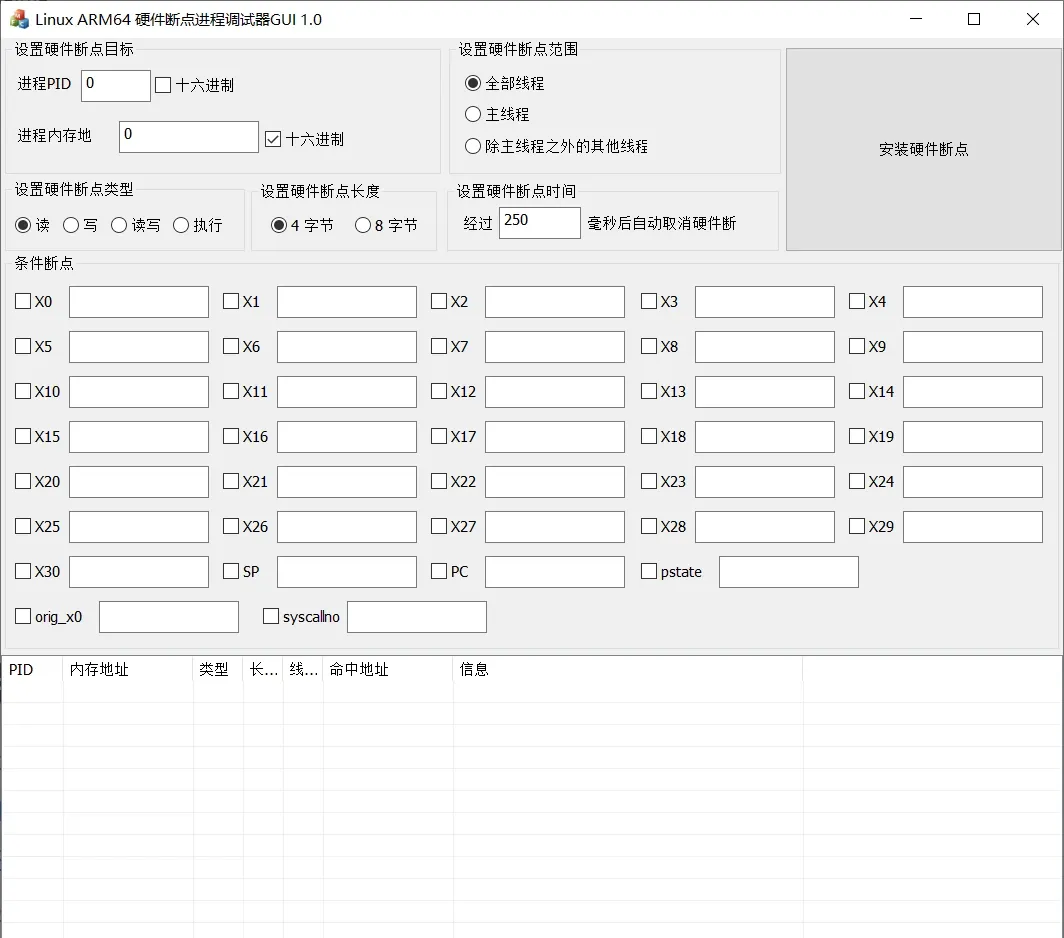
On the computer, run the compiled HwBpClient and fill in the phone’s IP and the port printed by testHwBpServer.out:
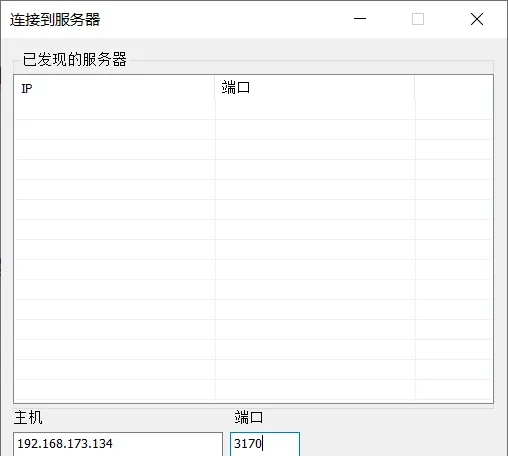
Click connect and you can start setting hardware breakpoints:
Query the process PID
ps -AQuery the target .so base address
You can query it with:
cat /proc/[app's PID]/mapsOr use this Frida script to dump the base:
function dump_so(so_name) {
    Java.perform(function () {
        var currentApplication = Java.use("android.app.ActivityThread").currentApplication();
        var dir = currentApplication.getApplicationContext().getFilesDir().getPath();
        var libso = Process.getModuleByName(so_name);
        console.log("[name]:", libso.name);
        console.log("[base]:", libso.base);
        console.log("[size]:", ptr(libso.size));
        console.log("[path]:", libso.path);
        }
    });
}

rpc.exports = {
    dump_so: dump_so
};
Now you’re all set to start setting hardware breakpoints.
Colin Xiao — I take on contract reverse-engineering work, and writeups like this are how I show what I can do. If you need help with anything in this space — including but not limited to the areas I cover above — I’m available. No project is too big or too small — if it’s reverse engineering and I can do it, I’ll take it. DM me on X (@colinxiao_lab) or Telegram (@ColinXiao666).
Get in touch