Packet Capturing on iOS with Charles, Clash, and Shadowrocket
About the author. I’m Colin Xiao — an independent reverse engineer, mostly working solo on contract jobs. I dig into compiled code of every kind, including but not limited to: Android and iOS apps, x86/x64/ARM native binaries, packers and obfuscators, DRM and license checks, network protocols and APIs, crypto and signature algorithms, malware, game binaries, and embedded/IoT firmware. I also handle large-scale data collection and vulnerability research. If you have any project in mind, I’d be glad to take it on — whatever it is, as long as it’s within my wheelhouse. Just reach out. You can reach me on X at @colinxiao_lab or on Telegram at https://t.me/ColinXiao666.
This research is published for educational and defensive purposes. The target sample is anonymized throughout.
Packet Capturing on iOS with Charles, Clash, and Shadowrocket
0x01 — Intro
A VPN-based iOS capture setup: forward packets to Charles over VPN instead of setting an HTTP proxy on the device, which bypasses proxy detection in apps. Clash does the host-side forwarding, so you can capture apps that talk to the open internet.
0x02 — Tools
- Charles — any version.
- Clash — any version, with an active proxy.
- Shadowrocket — any version.
0x03 — Configure Clash
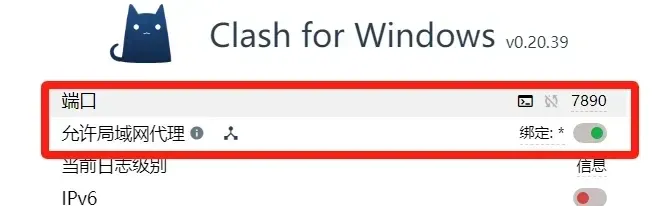
Once the proxy is up, check the general port and remember it. Turn on “Allow LAN” — without it the phone can’t connect.
0x04 — Configure Charles
1. Proxy settings
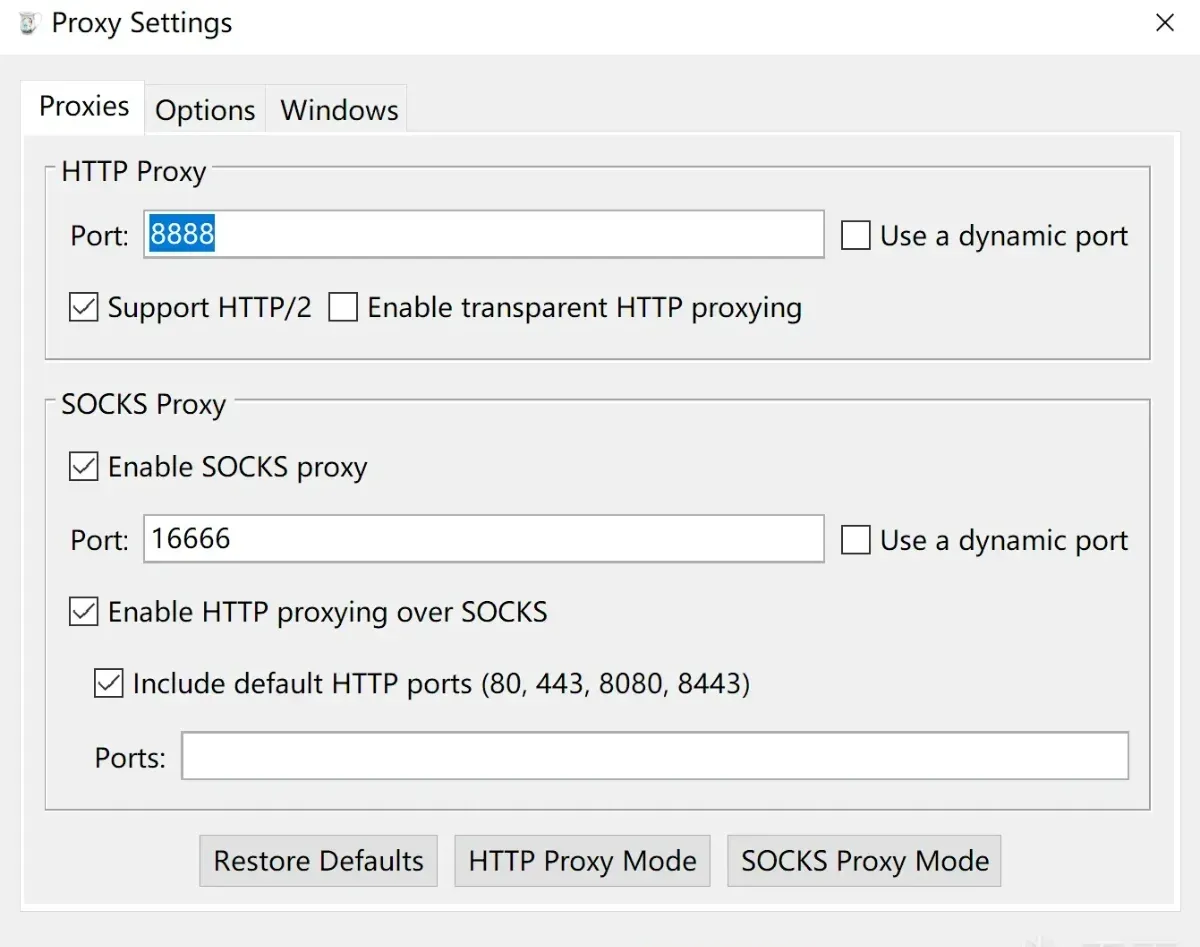
Proxy → Proxy Settings:
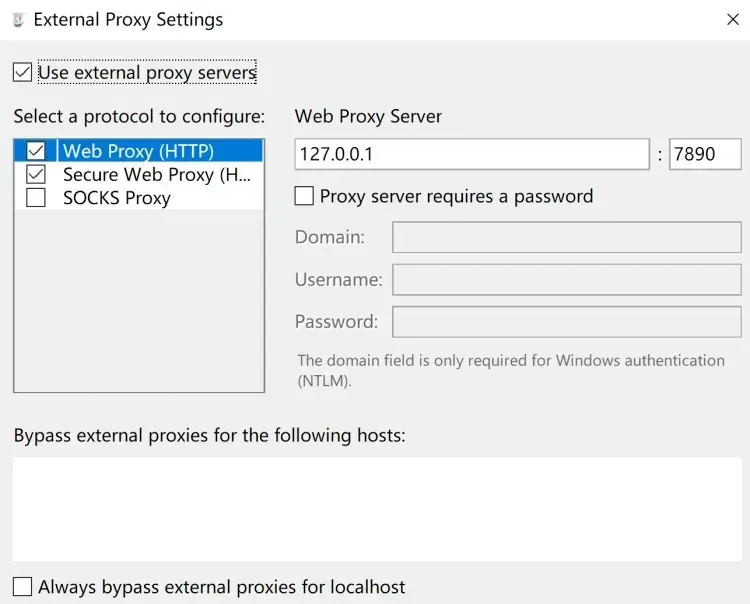
Proxy → External Proxy Settings:
2. Install the SSL certificate
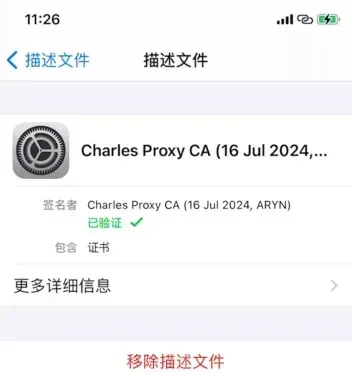
Click Help → SSL Proxying → Install Charles Root Certificate on a Mobile Device. A dialog shows the URL chls.pro/ssl. Open it in Safari on the phone, download it, then trust it under Settings → General → Profiles.
3. Trust the certificate
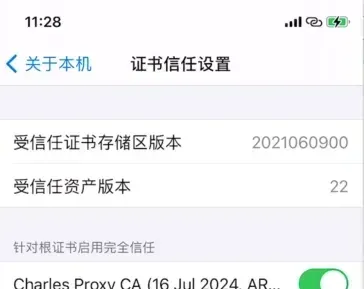
Under Settings → General → About → Certificate Trust Settings, enable full trust for the Charles certificate.
0x05 — WiFi proxy capture (skip this)
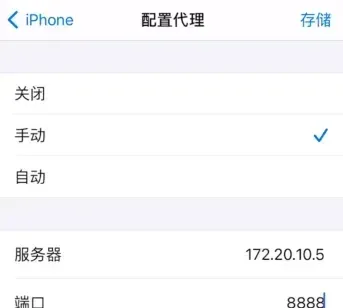
Put the phone and computer on the same WiFi, then set an HTTP proxy under Settings → Wi-Fi → your network:
- Server: the computer’s IP, e.g. 172.20.10.5
- Port: 8888
For VPN capture, skip this step entirely — don’t configure a WiFi proxy. The two conflict, so use only the VPN capture.
0x06 — Capture with Shadowrocket
Shadowrocket does the proxy forwarding. A VPN proxy sits at the network layer, so it captures more packets and also bypasses proxy detection.
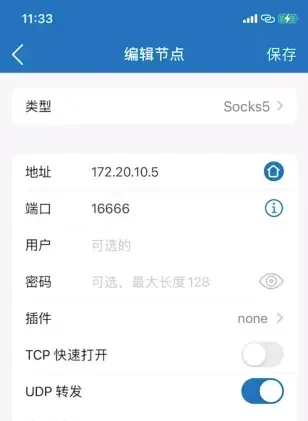
Open Shadowrocket, add a server, and choose type Socks5:
- Address: Charles’s address (Charles → Help → Local IP Address) — mine is 172.20.10.5.
- Port: Charles’s port (Charles → Proxy → Proxy Settings) — default 8889, configurable.
- Username & password: optional.
Back on the home screen, go to global routing, switch to proxy mode, and enable the proxy to start capturing:
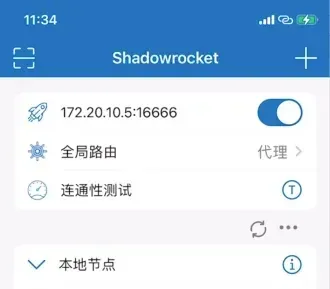
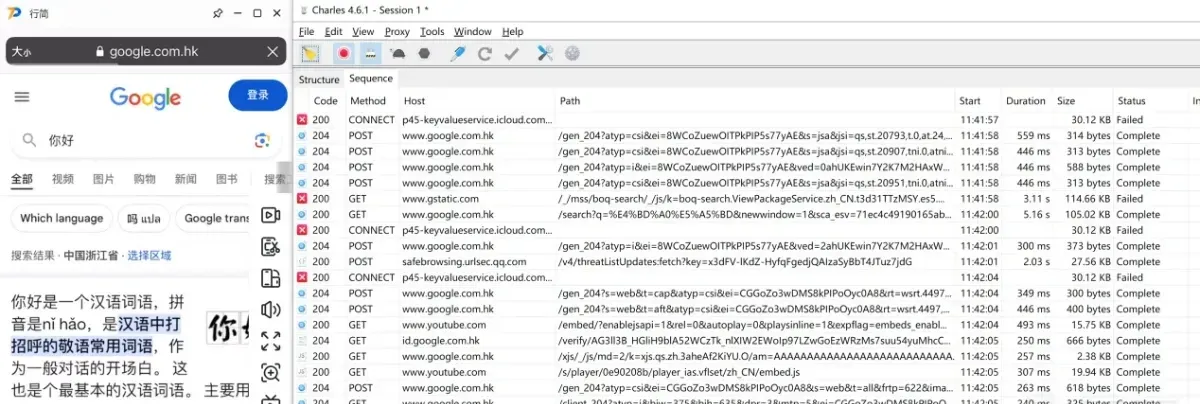
Once it’s on, open Google on the phone and check whether Charles captures the traffic — if it does, you’re set:
0x07 — When capture fails
Two main cases:
- The app detects a proxy and either crashes on launch or can’t connect.
- The app uses SSL/Certificate Pinning, so HTTPS capture fails once Charles enables SSL Proxying.
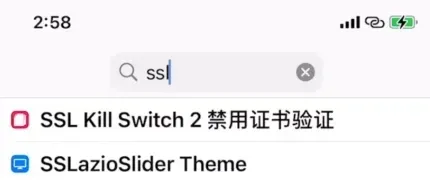
For the first, use the Shadowrocket setup above instead of a WiFi proxy. For SSL Pinning, it’s hard — you need a jailbreak; without one, there’s no easy answer. On a jailbroken iPhone, install SSL Kill Switch 2 from Cydia:
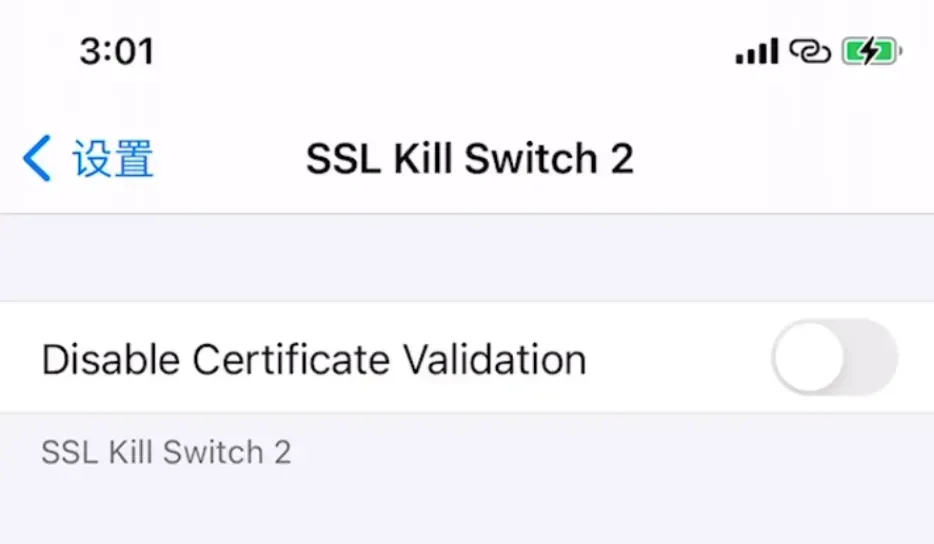
After installing, open Settings, scroll to SSL Kill Switch 2, and enable “Disable Certificate Validation” — this bypasses SSL Pinning in most apps. If capture still fails, you’ll have to unpack and analyze the app.
0x08 — Summary
Every big win starts with a first step.
Colin Xiao — I take on contract reverse-engineering work, and writeups like this are how I show what I can do. If you need help with anything in this space — including but not limited to the areas I cover above — I’m available. No project is too big or too small — if it’s reverse engineering and I can do it, I’ll take it. DM me on X (@colinxiao_lab) or Telegram (@ColinXiao666).
Get in touch