Reverse Engineering a VPN Accelerator's Protection Stack: Root Detection, Encryption, and Device-ID Rotation
About the author. I’m Colin Xiao — an independent reverse engineer, mostly working solo on contract jobs. I dig into compiled code of every kind, including but not limited to: Android and iOS apps, x86/x64/ARM native binaries, packers and obfuscators, DRM and license checks, network protocols and APIs, crypto and signature algorithms, malware, game binaries, and embedded/IoT firmware. I also handle large-scale data collection and vulnerability research. If you have any project in mind, I’d be glad to take it on — whatever it is, as long as it’s within my wheelhouse. Just reach out. You can reach me on X at @colinxiao_lab or on Telegram at https://t.me/ColinXiao666.
This research is published for educational and defensive purposes. The target sample is anonymized throughout.
Reverse Engineering a VPN Accelerator’s Protection Stack
My usual VPN setup stopped working recently, so I went looking for a replacement and found a VPN accelerator app. After installing it, I realized it only grants two hours of trial time before it pushes a paid subscription. That made it a perfect case study: a real-world app wearing a complete protection stack — root detection, proxy detection, encrypted traffic, signature checks, and device-ID tracking. This writeup walks through the whole thing, in order.
The app in question:
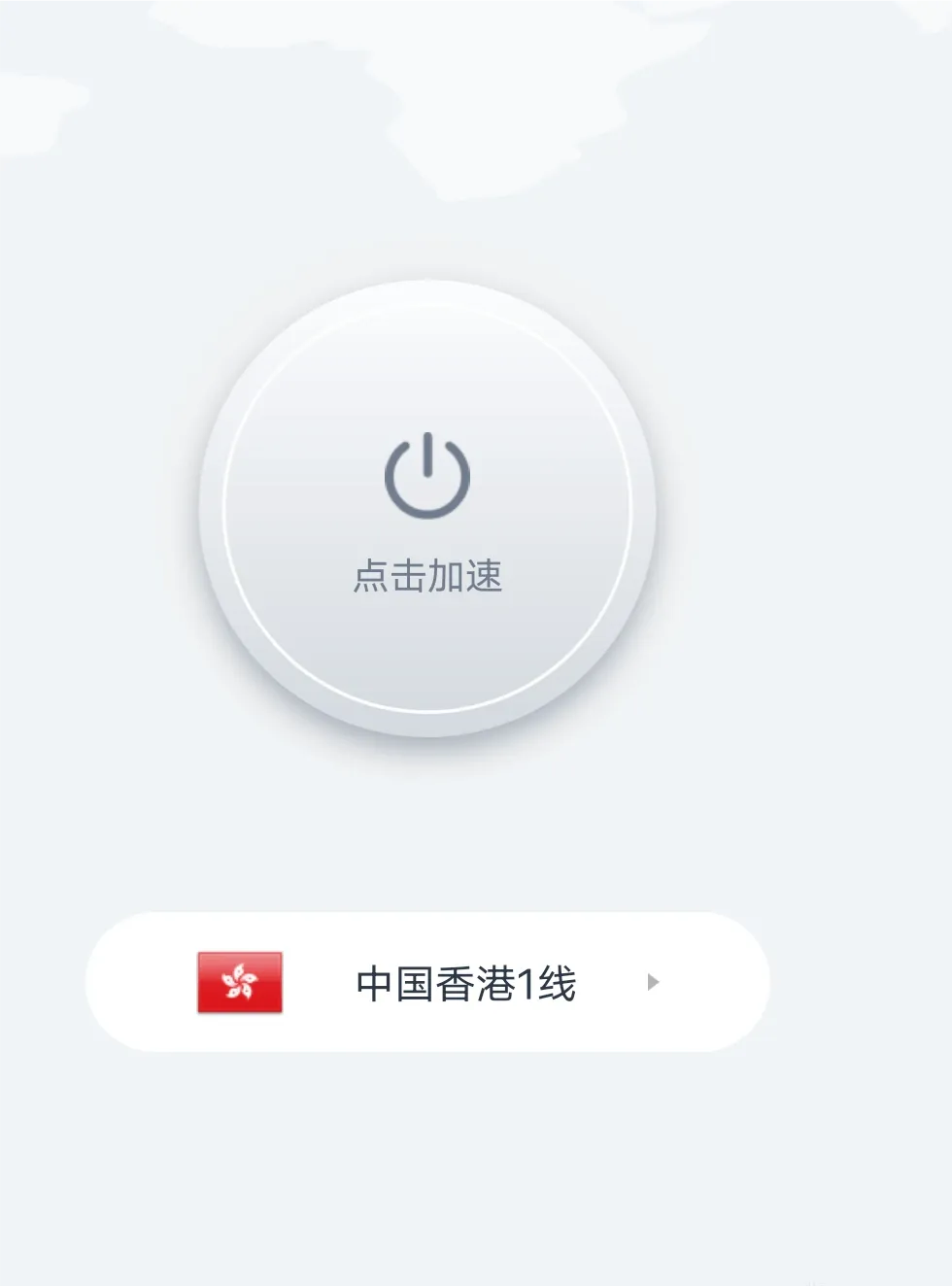
Figure 1 — the target app
1. Root detection
Install the app and launch it — immediately a warning pops up:
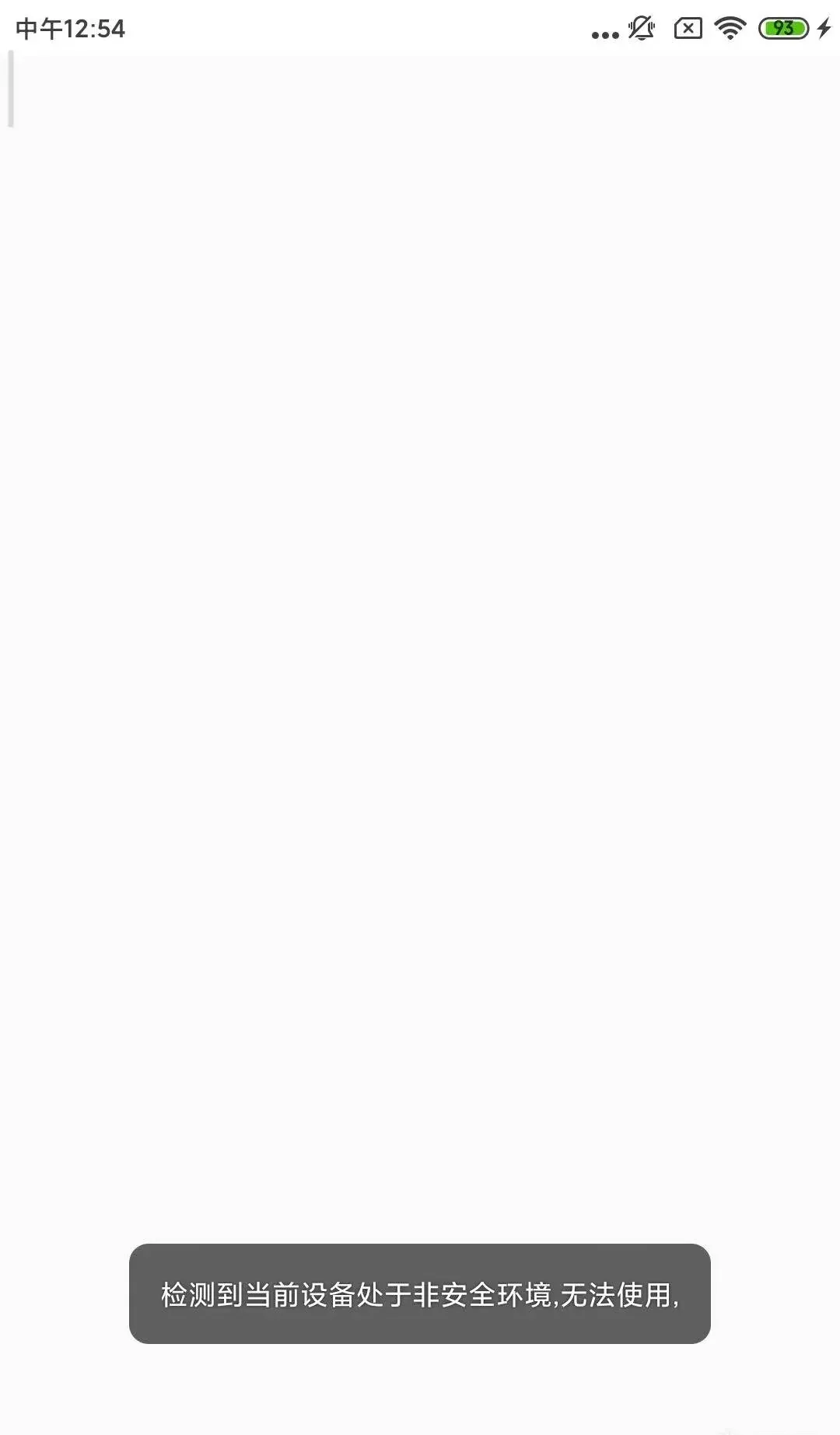
Figure 2 — root detected at launch
It’s clearly detecting root, since I’m testing on a rooted phone.
Load the APK in jadx and search for the key phrase in the toast:
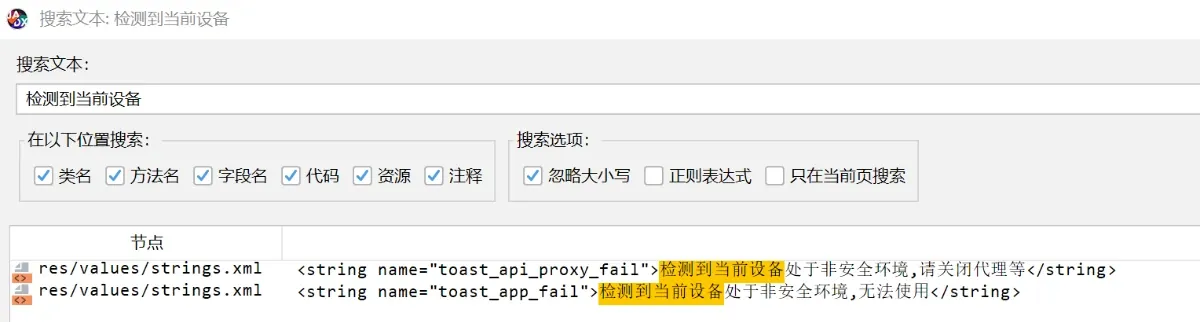
Figure 3 — the string in jadx
There it is. Its resource id is toast_app_fail. Search for references to that id:
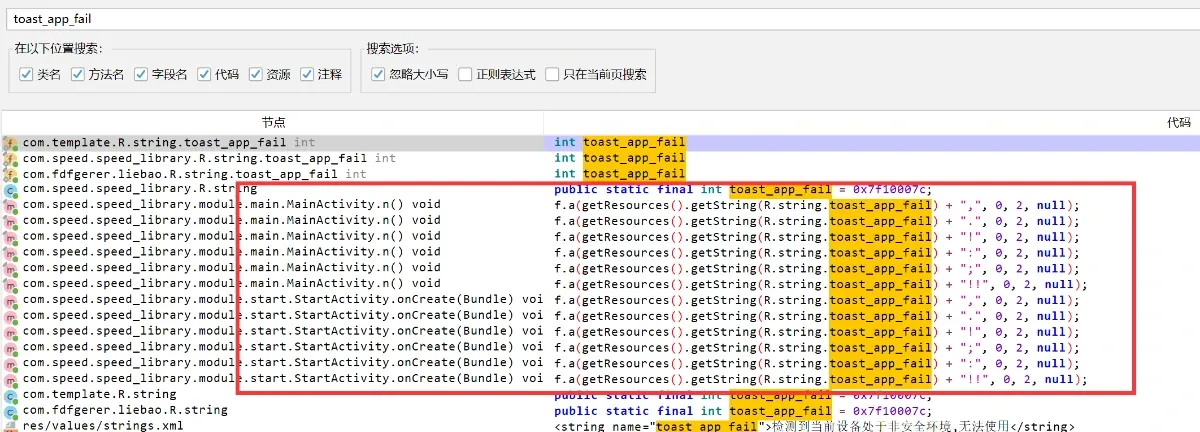
Figure 4 — references to toast_app_fail
Lots of call sites, mostly in MainActivity and StartActivity — expected, since those are usually the first two classes an Android app runs, and most checks live at startup. Notice each call has a different suffix (comma, exclamation mark, etc.). Ours is the comma, so follow the comma variant:
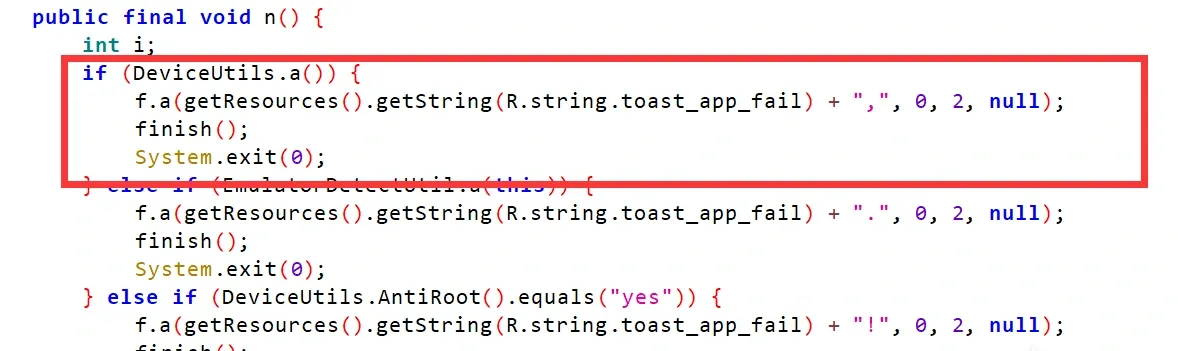
Figure 5 — the comma-suffix call site
It calls DeviceUtils.a(); if that returns true, the app shows the warning string and exits. Let’s look at a():
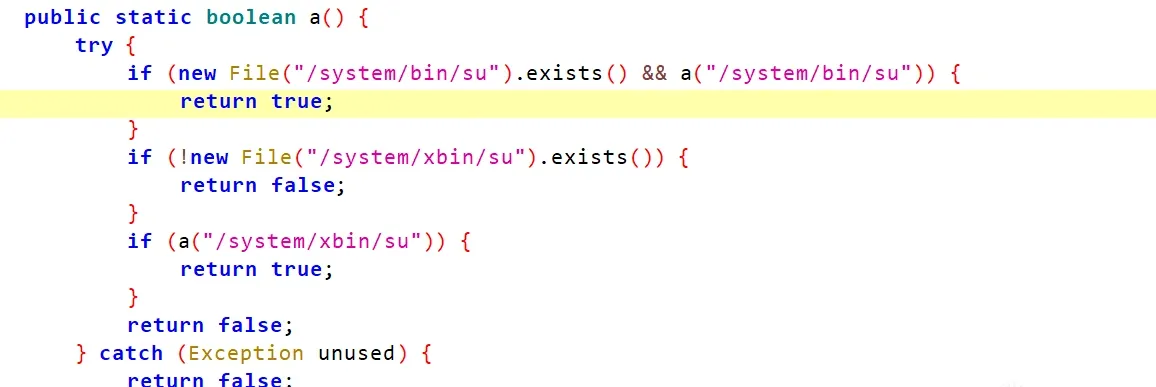
Figure 6 — DeviceUtils.a()
Sure enough, it’s checking root. The standard way to detect root is to try opening su files under /system — if they open, the device has root.
Open the package in MT Manager, find the a function, and patch the smali so it returns false without doing any check:
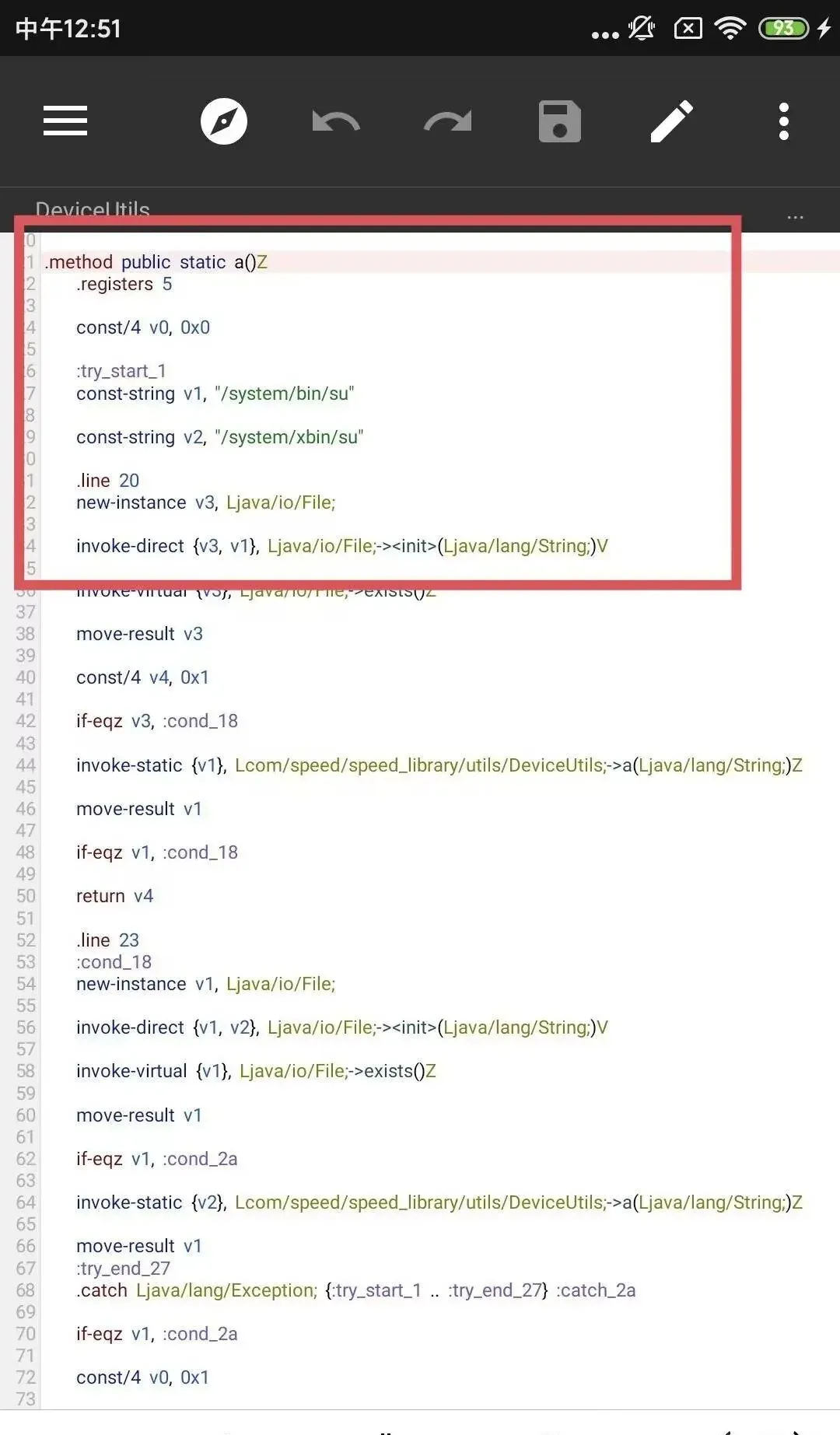
Figure 7 — the smali before patching
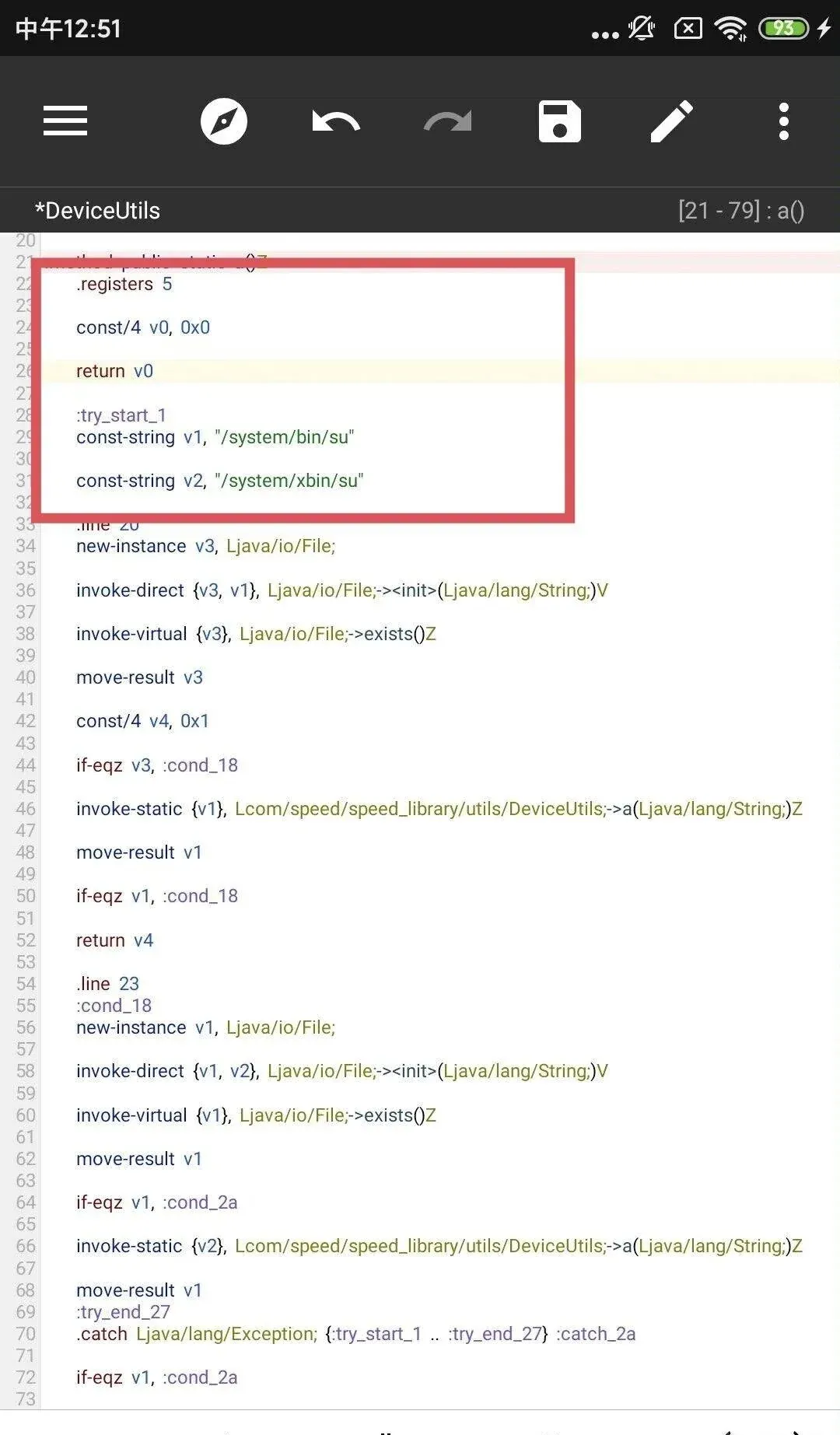
Figure 8 — return v0 directly
Just return v0.
Repack and install. The same message pops up again — but this time the suffix is an exclamation mark:
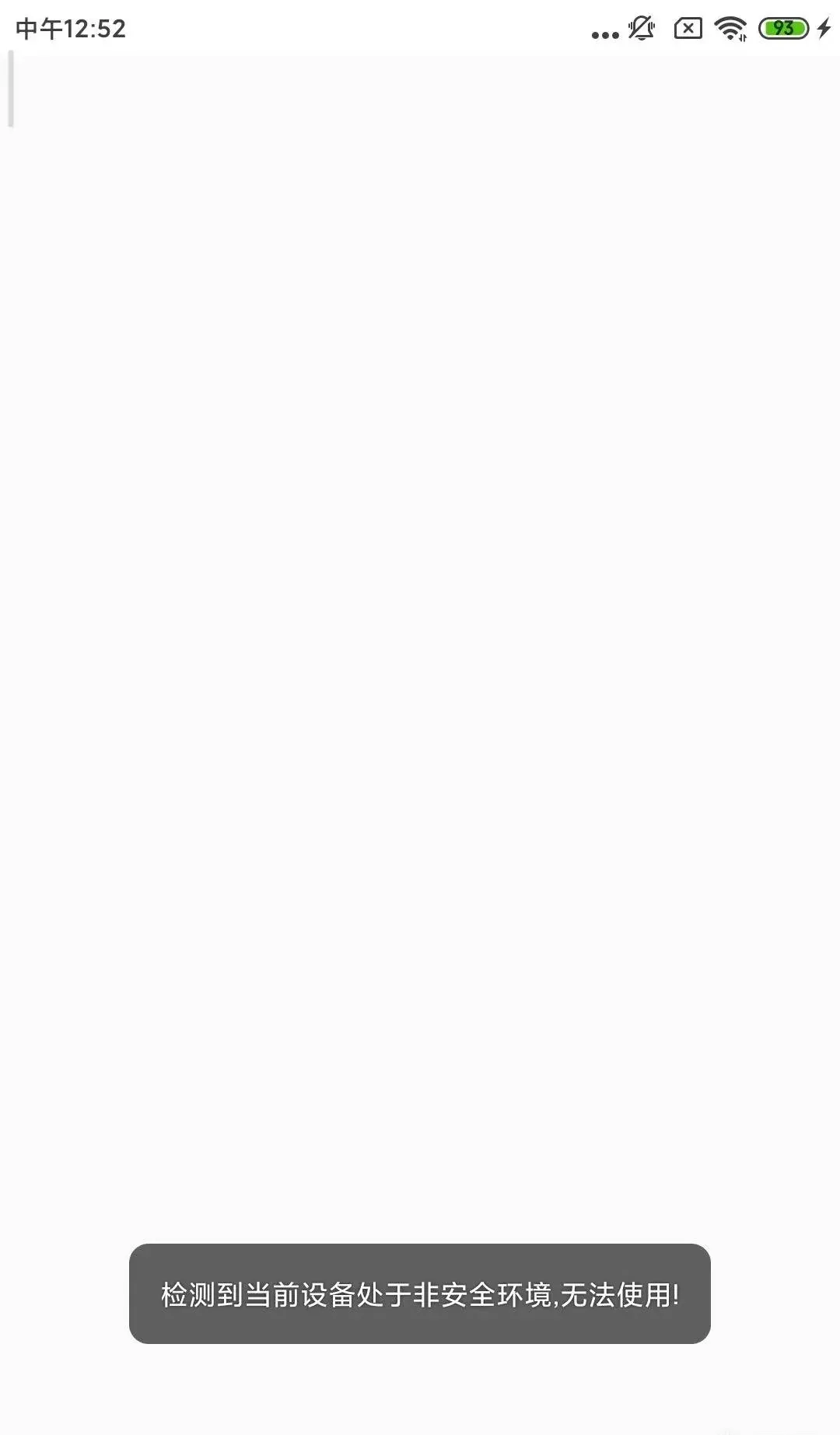
Figure 9 — the exclamation-suffix variant
Locate where this exclamation variant is triggered. There’s DeviceUtils.AntiRoot() — a protection so eager it’s almost endearing. Out of pure study, let’s see how this one does anti-root.
Drilling in, it’s a native function, and the loaded .so is called myapplication:

Figure 10 — AntiRoot in the native library
Load libmyapplication.so in IDA and search for AntiRoot:
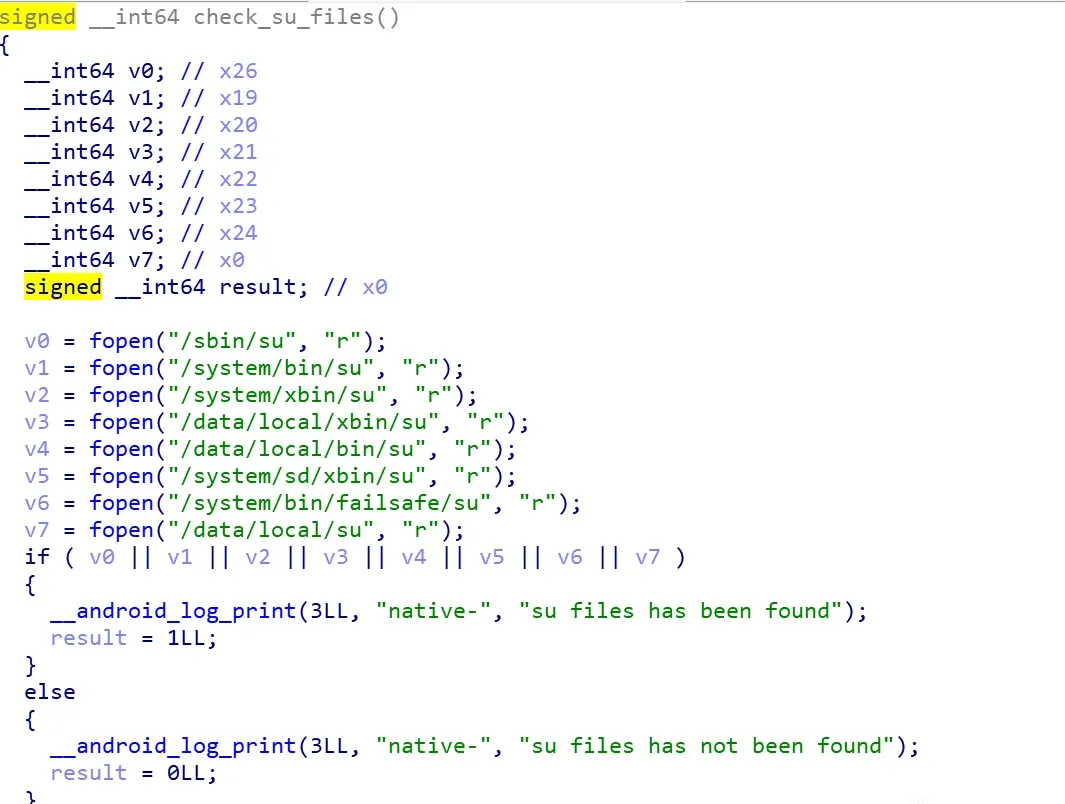
Figure 11 — AntiRoot disassembled
It still checks su files — returns “yes” if found, “no” otherwise. That matches the Java-side check.
And check_su_files() is likewise just trying to open the usual su paths:
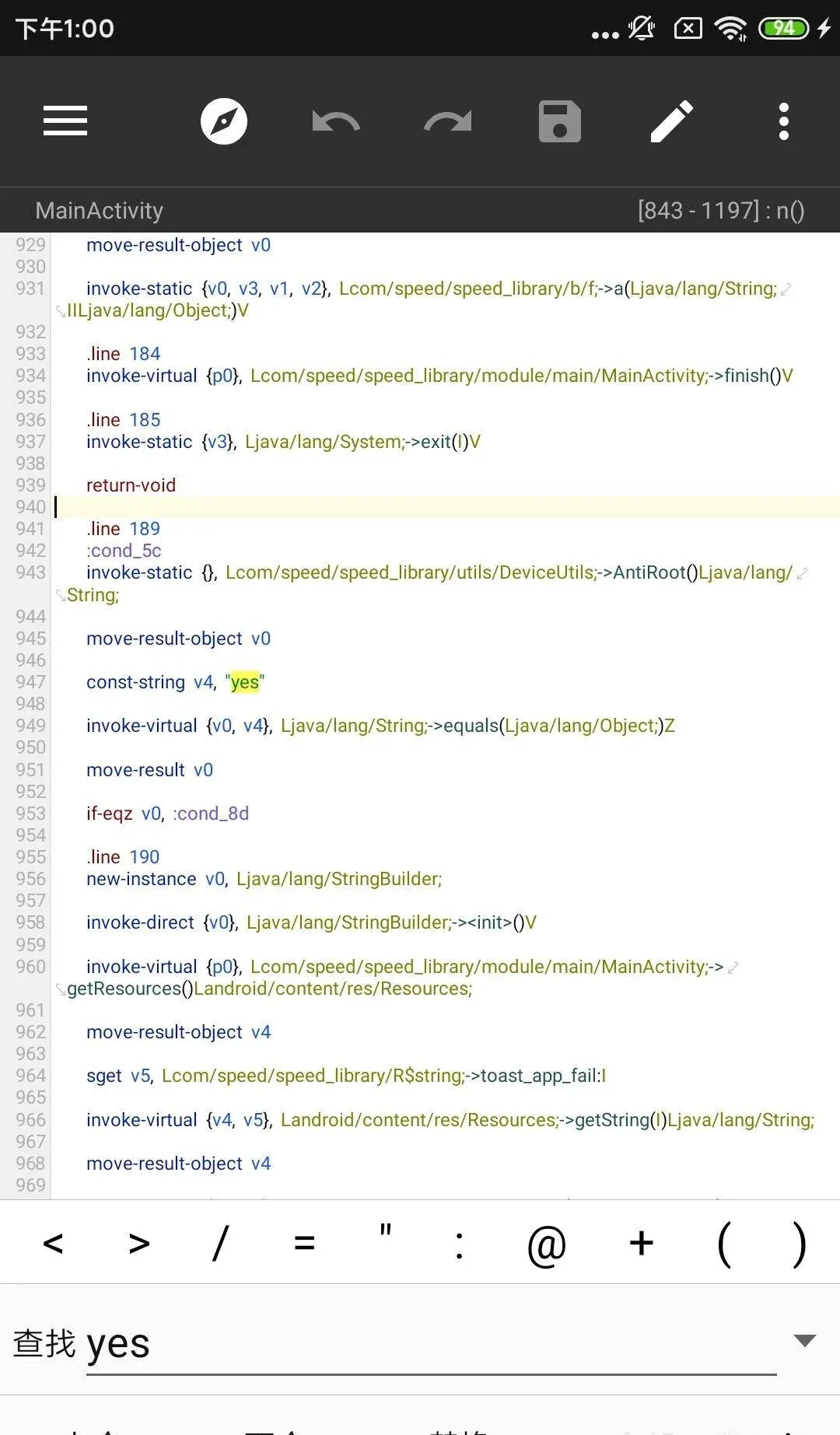
Figure 12 — check_su_files before
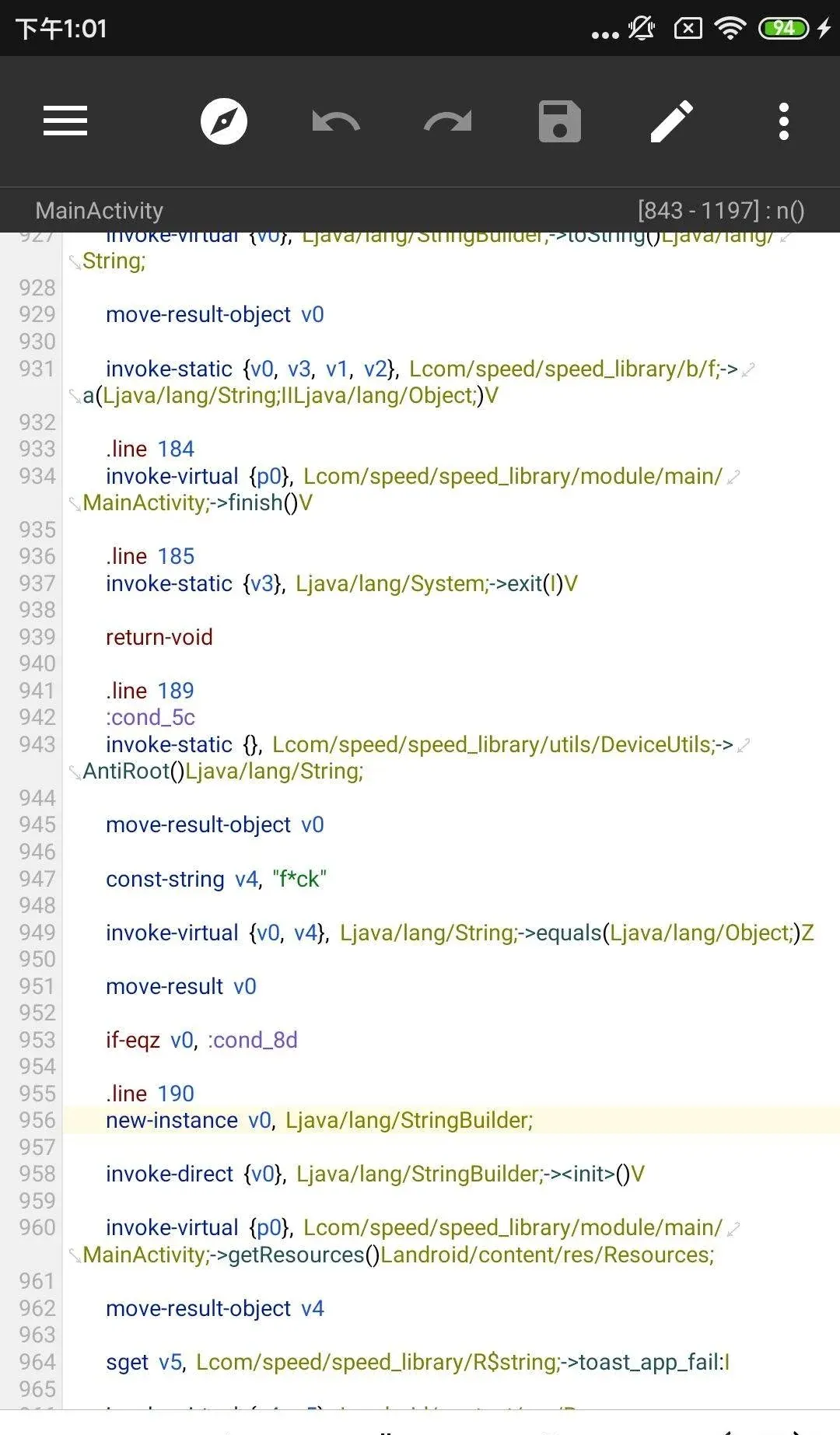
Figure 13 — the “yes”/“no” comparison
Since that’s the case, I can patch the Java side directly with MT Manager and change the compared “yes” to f*ck, so even if root is detected, the Java comparison fails:
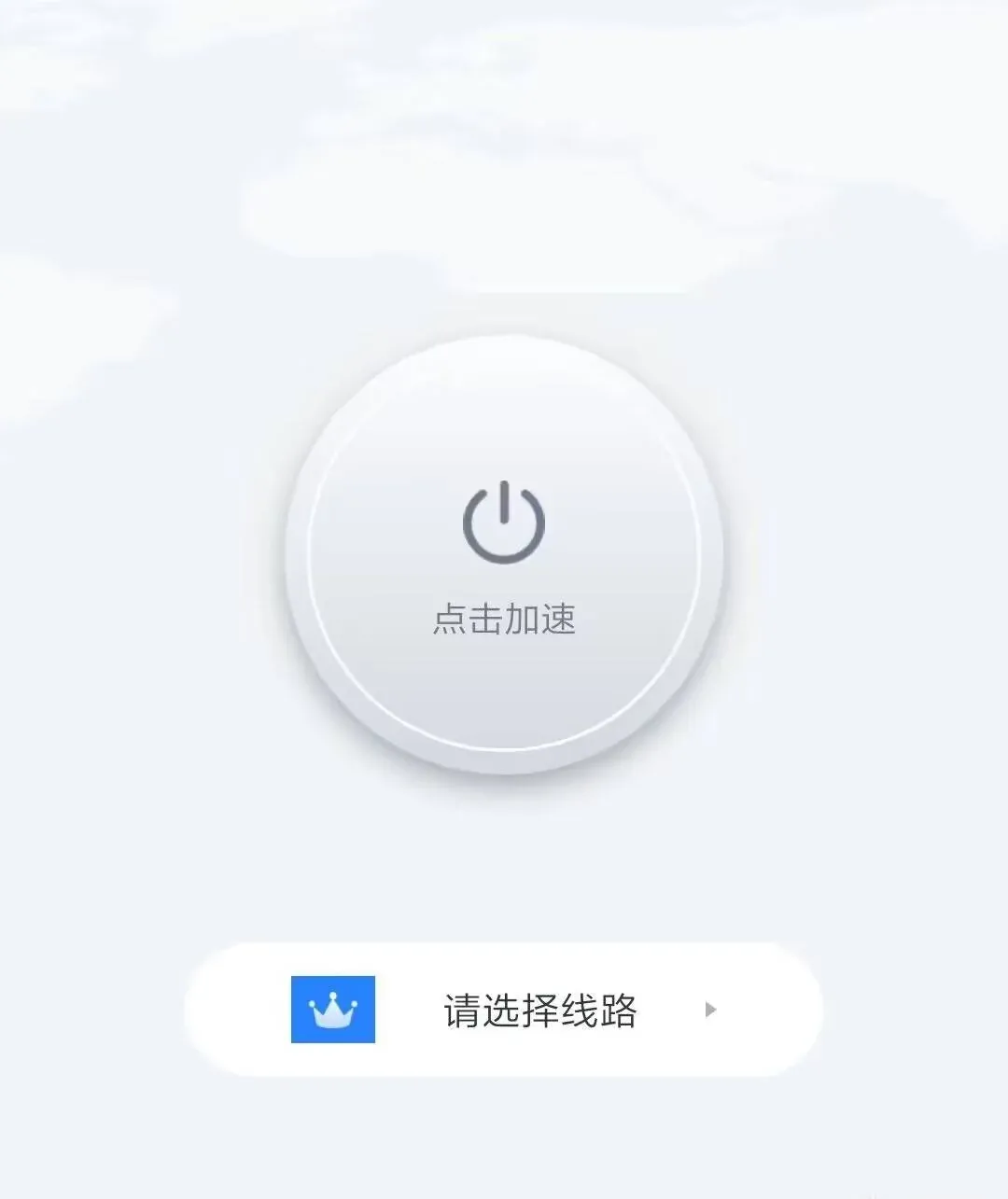
Figure 14 — patching the comparison
At this point root detection is fully bypassed and the app opens — but it’s blank:

Figure 15 — the app opens blank
That usually means the app isn’t getting correct response data. On launch it requests data from the backend; if the data is malformed, nothing renders. Time to watch the traffic.
2. Proxy detection
Turn on the phone’s proxy:
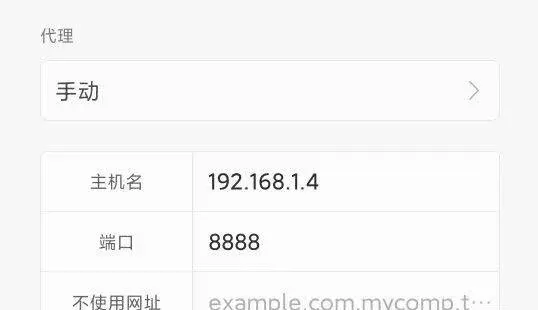
Figure 16 — setting the proxy
Start Fiddler — and the app fails to launch again, this time with this:
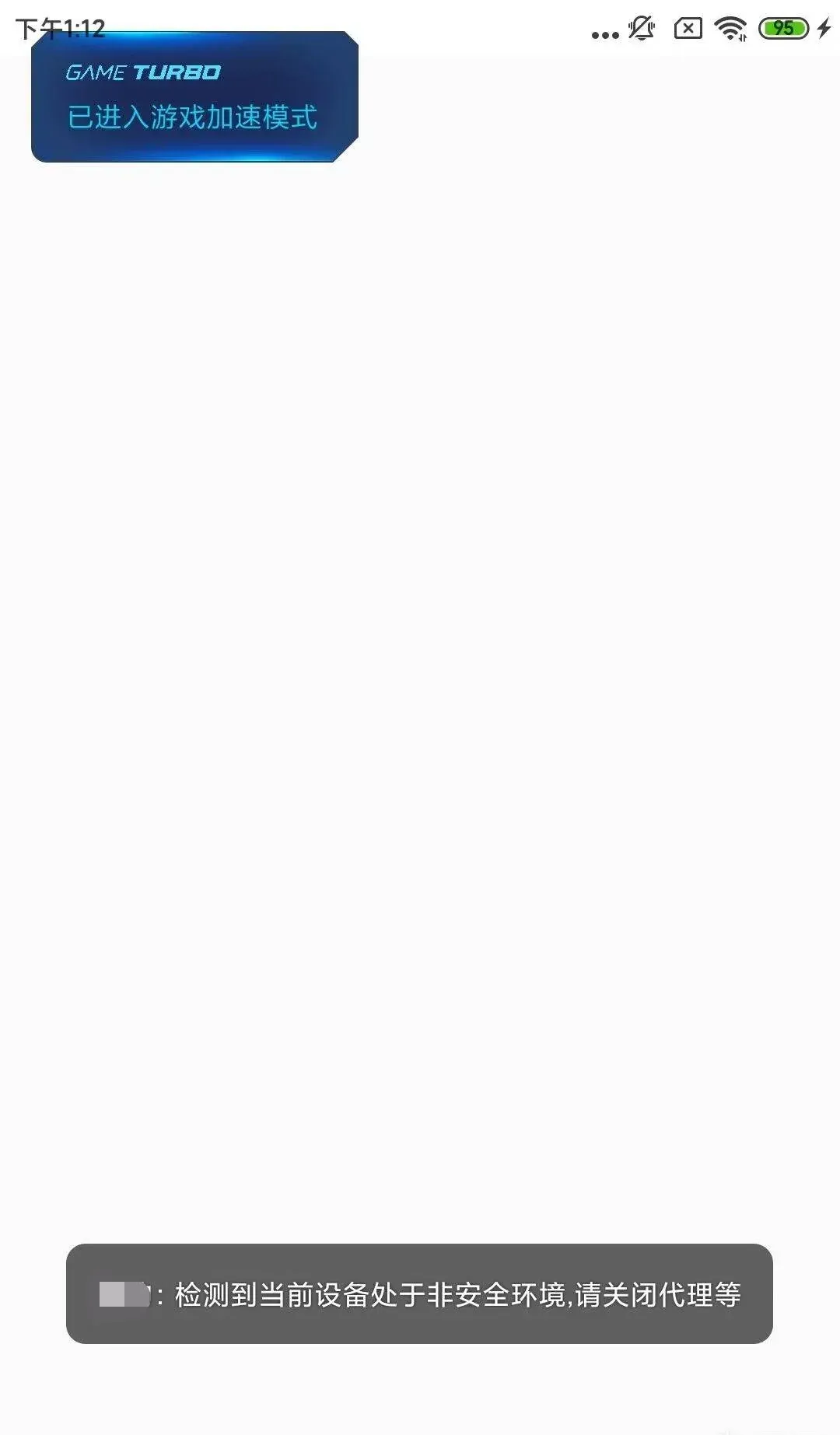
Figure 17 — proxy detected
The app is almost helpful about it, telling you outright that it’s checking for a proxy. So follow the breadcrumb. The string id is toast_api_proxy_fail; find its references. The flow is basically identical to root detection, except it calls a b function to check for a proxy:
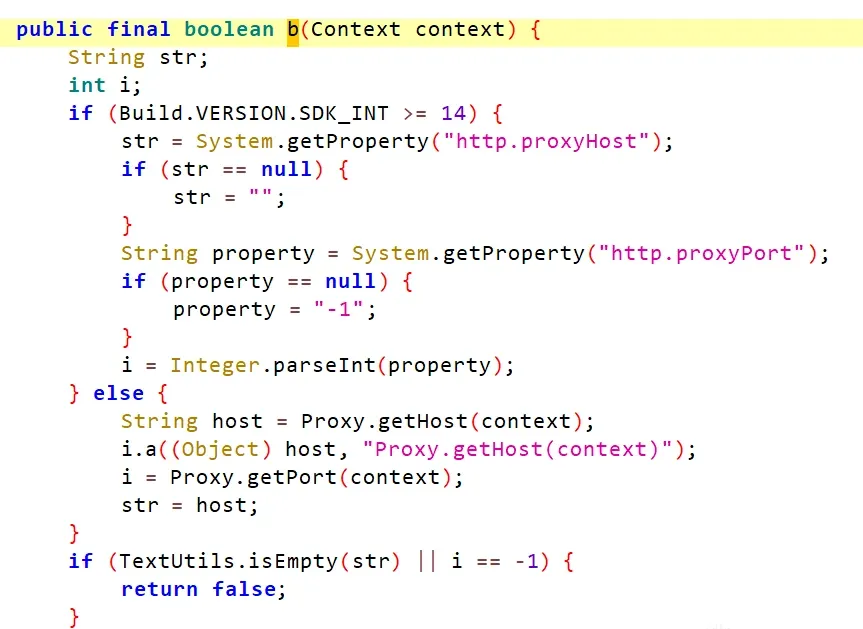
Figure 18 — the proxy check
The logic is that the proxy check requires http.proxyHost (the proxy address) to be an empty string, or http.proxyPort (the proxy port) to be -1:
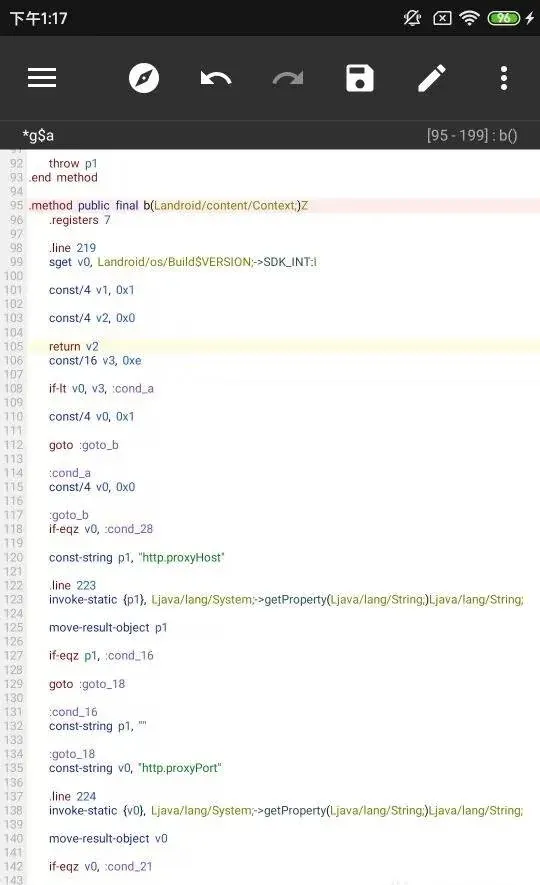
Figure 19 — patching b() to return false
Patch the Java so it always returns false:
After that, the app opens and I can capture traffic:

Figure 20 — traffic captured
But the app’s UI is still blank. Looking at the response data, it’s encrypted:

Figure 21 — encrypted response body
The trailing == smells like base64, but base64 decoding fails — so I’m guessing AES or DES.
3. Decrypting the data
Where’s the decryption? That requires understanding how Android handles network requests.
Clients typically use okhttp as the HTTP client for requests and responses. (Some big shops use cronet instead, but mostly layered on top of okhttp.)
okhttp works as a chain of responsibility — a pipeline, really — where each stage handles one thing. On the send side, the first stage adds basic info (device id, timestamp, etc.), the second computes a signature, the third encrypts the outbound body.
The receive side has its own pipeline, and decryption usually sits in one of those stages. So the goal is to find where the okhttp client is created, then where the pipelines are added.
Open up okhttp in the APK — and it’s obfuscated:
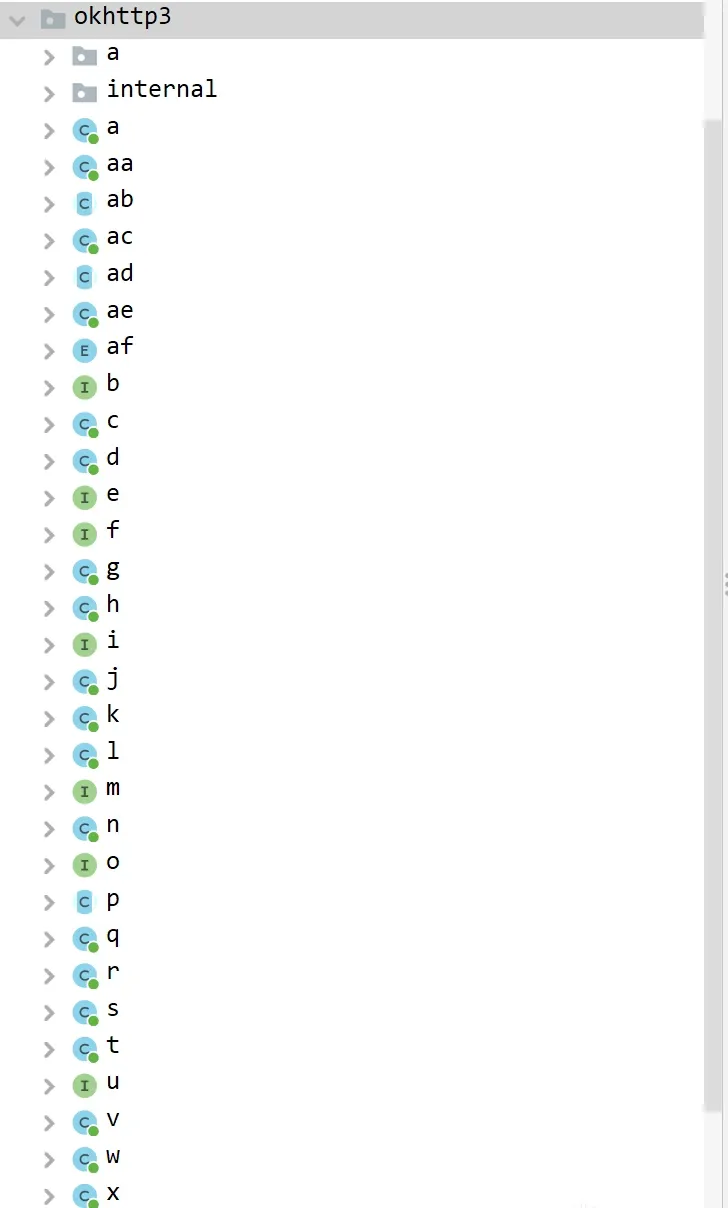
Figure 22 — obfuscated okhttp
Usually okhttp is instantiated in the okhttpclient class. Obfuscation can only rename functions and classes — it can’t touch implementation, including some distinctive string literals. So start from strings and find okhttpclient.
Pull okhttp’s source and check what marks the okhttpclient class:
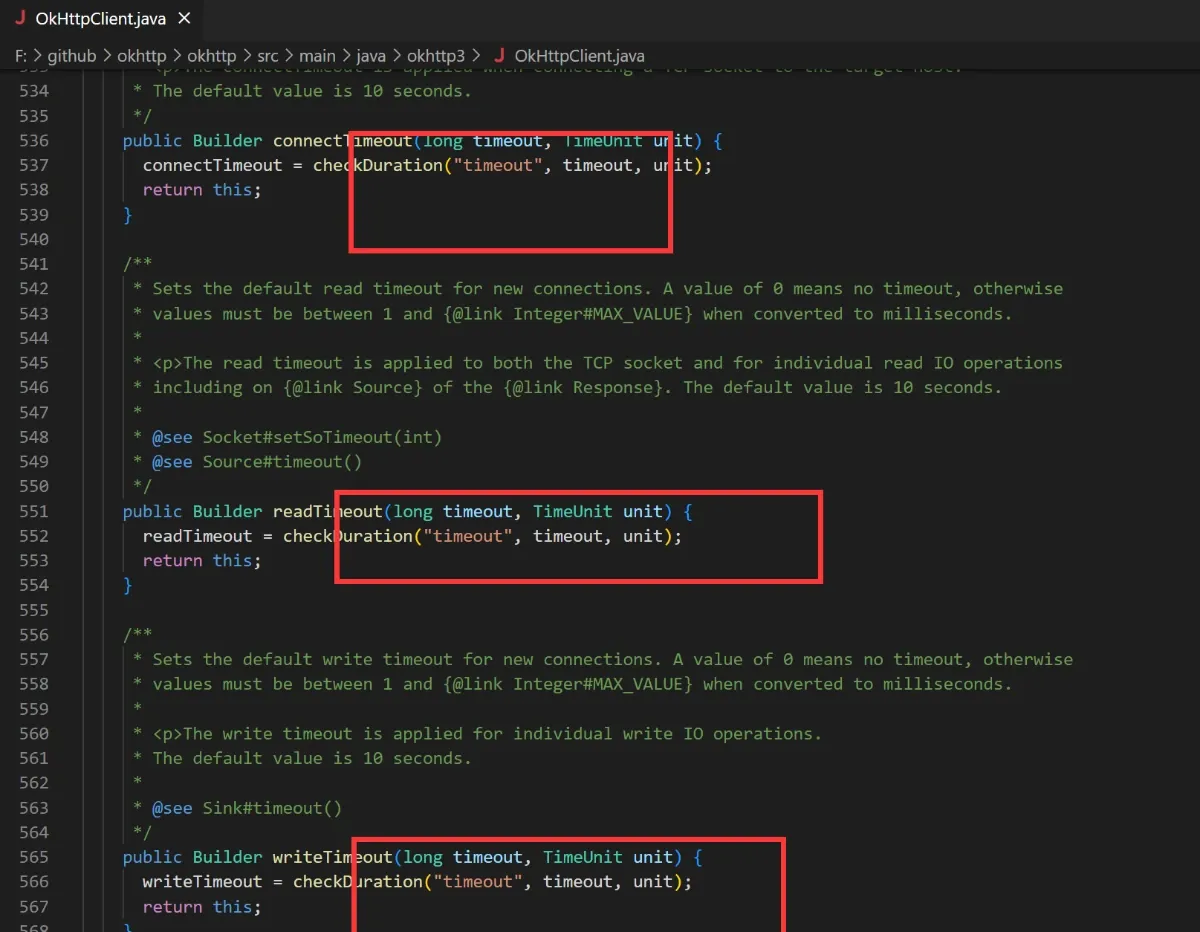
Figure 23 — okhttpclient’s distinguishing strings
Inside its inner builder, there are three consecutive "timeout" strings — and those can’t be obfuscated. Search jadx globally for timeout:
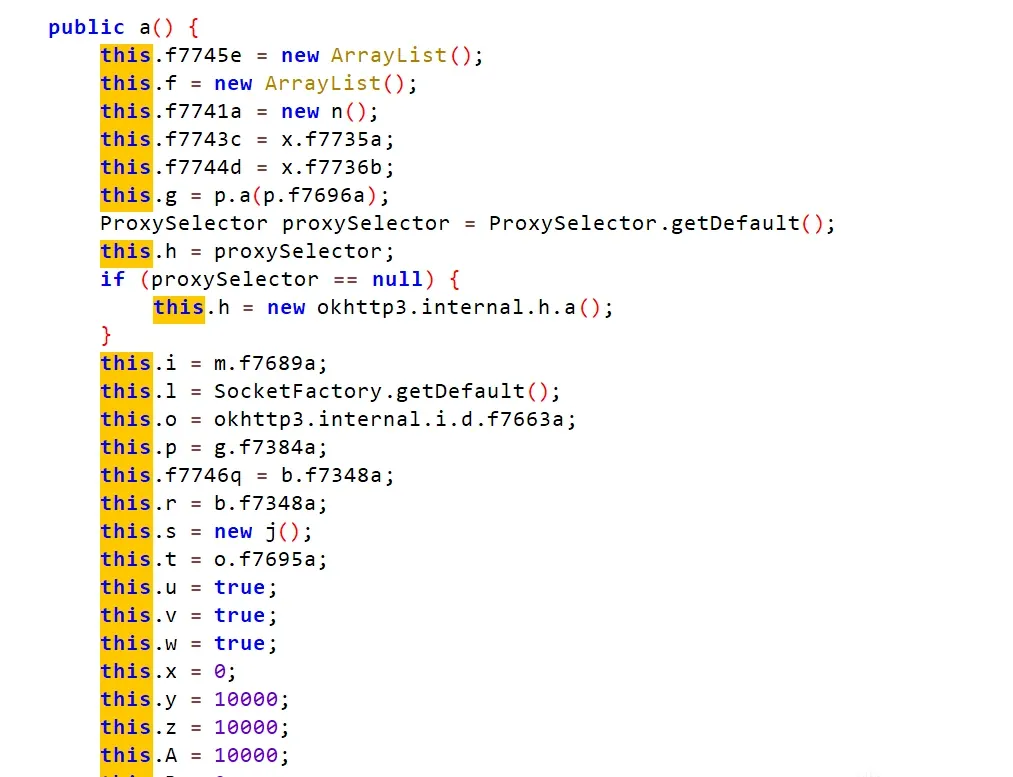
Figure 24 — the okhttpclient class found
There it is. The structure matches okhttpclient exactly — this is our okhttpclient. Check its references, and we’ve found where the app creates its okhttp client:

Figure 25 — where the client is created
Another okhttp fingerprint is the read/write timeout setup — the TIMEUNIT reference confirms it’s setting HTTP read/write timeouts.
Right after that, a chain of .a(...) calls adds one pipeline after another (okhttp calls them interceptors, but they’re effectively pipeline stages).
Check each one. One adds request headers:
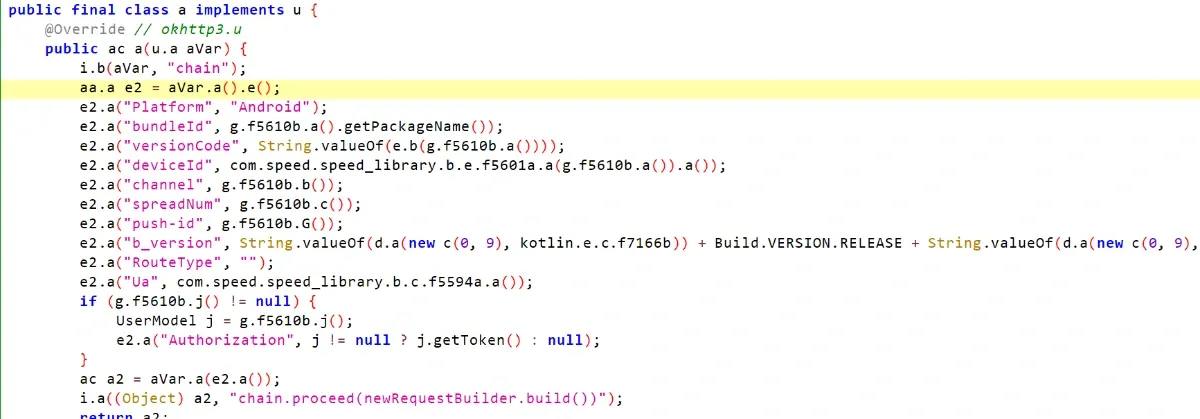
Figure 26 — the header-adding interceptor
And another is data-processing related:
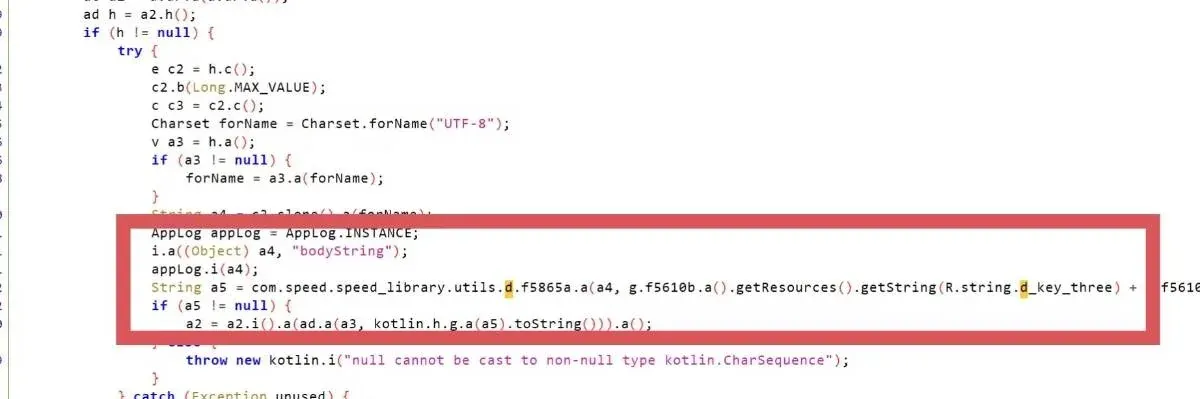
Figure 27 — the data interceptor
The response, bodystring strings, and d_key_three jump out — why does a response body appear next to a key? Drill into f5865a.a:
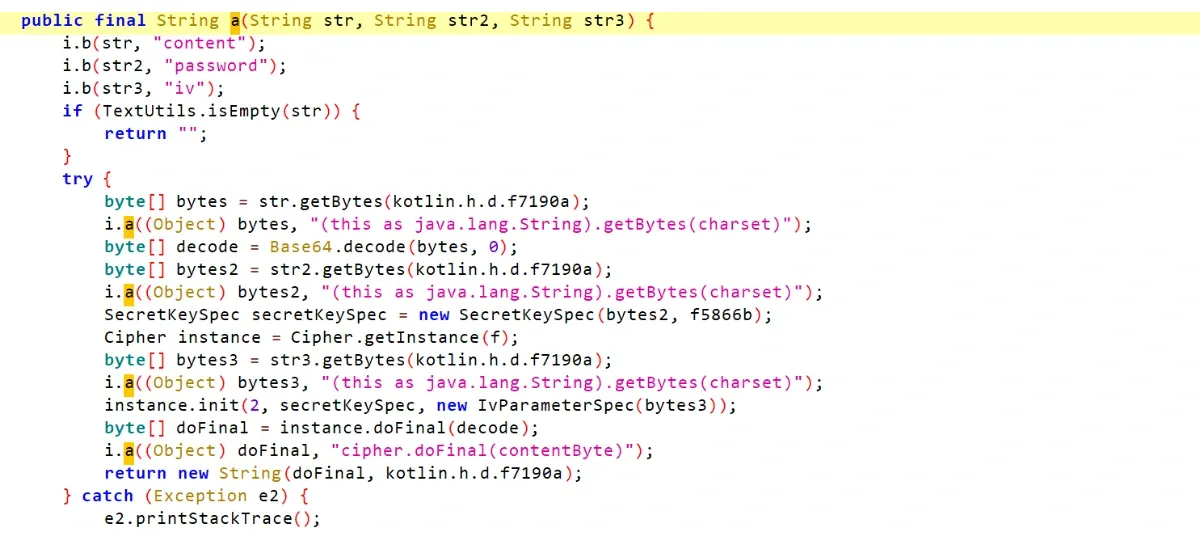
Figure 28 — f5865a.a
Confirmed. password, iv, SecretKeySpec, Cipher, doFinal — clearly AES decryption.
To be precise, check what f5866b (in SecretKeySpec) and f (in Cipher.getInstance(f)) are:

Figure 29 — key and mode fields
Both f5766b and f failed to decompile, so drop to smali:
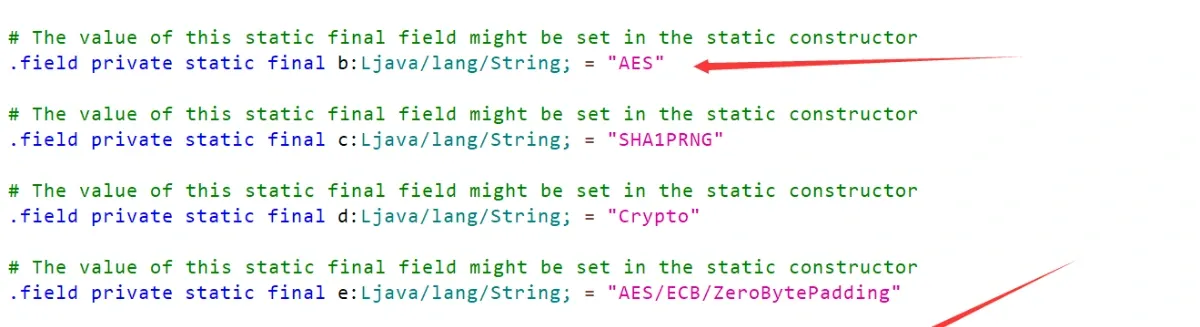
Figure 30 — the smali shows the mode
Confirmed: AES with CBC mode and PKCS5Padding.
Let’s hook this a function and see what comes out decrypted. A simple Frida script:

Figure 31 — the Frida hook
After hooking, the output is odd:
The input is indeed the encrypted response data, but the decrypted result is empty. And the key looks wrong — it ends in error?
Check the system log:
Decryption fails with “Unsupported key”.
Looking closer, the key and IV are 14 bytes. AES keys are 128/192/256 bits, so a key must be 16, 24, or 32 bytes — 14 bytes is clearly wrong.
Find where the key is generated. It’s built by concatenating three parts:
The first part comes from resources:
The second comes from the app’s built-in database, using a default value:

Figure 32 — the second key part
The third comes from native code. Look at that native function:
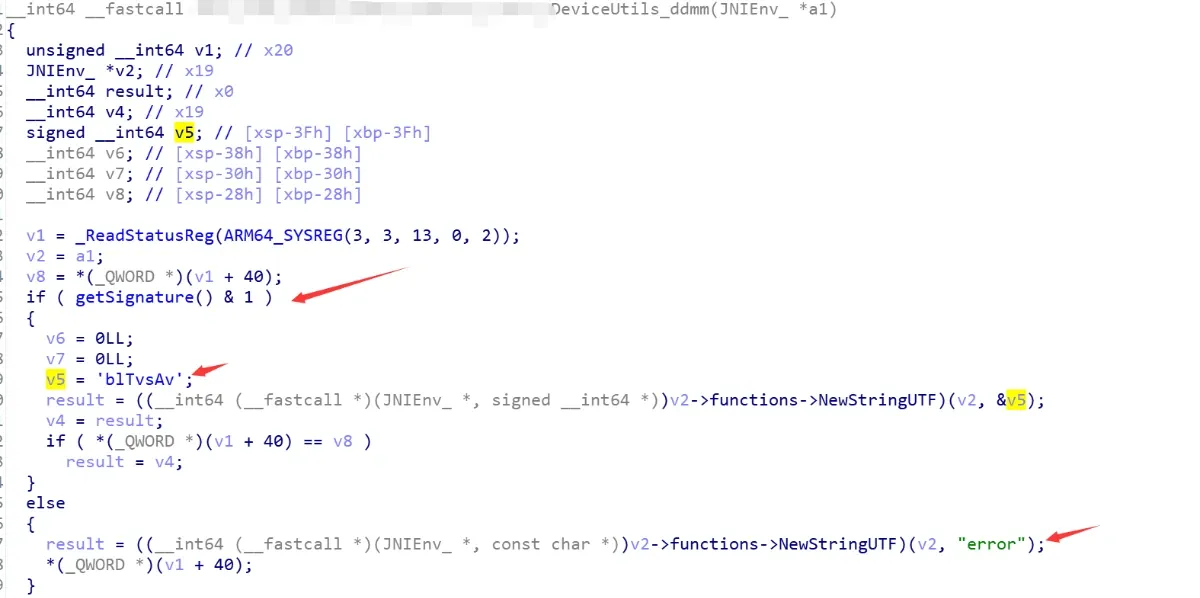
Figure 33 — the native key part
So the native key retrieval does another signature check: if the signature is wrong it returns error, and only a correct signature returns the real suffix.
Adjust the Frida script:
Force the correct key into the decryption function. This time it decrypts — but:
The returned data says “signature verification failed.”
4. Signature check
The signature verification failed, so we didn’t get valid response data. Let’s see how the signature is computed.
The HTTP request header has a sign field:
That’s the signature.
Signatures are usually named sign, sig, authcode, sec, and so on. Some apps get creative — a well-known short-video app names them after figures from Greek mythology.
Search jadx globally for "sign". (Use "sign" with double quotes — it’s much more efficient. Since generating a sign typically stores it in a map under the key "sign", and a map key is a String, the code that generates the sign is guaranteed to contain the literal "sign".)
There it is:
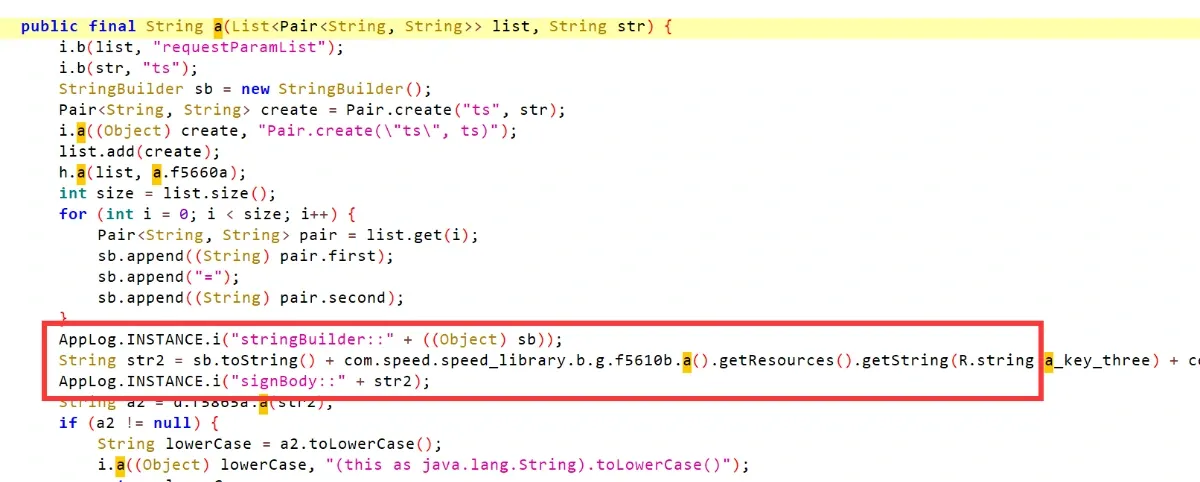
Figure 34 — the sign reference
Look at how a7 is generated:
Reading the a function: it first adds ts as a timestamp, then concatenates all parameters end to end, appends a suffix that resembles the AES key, then calls another a function to compute a2, and lowercases a2. That’s the signature.
Check that other a function:
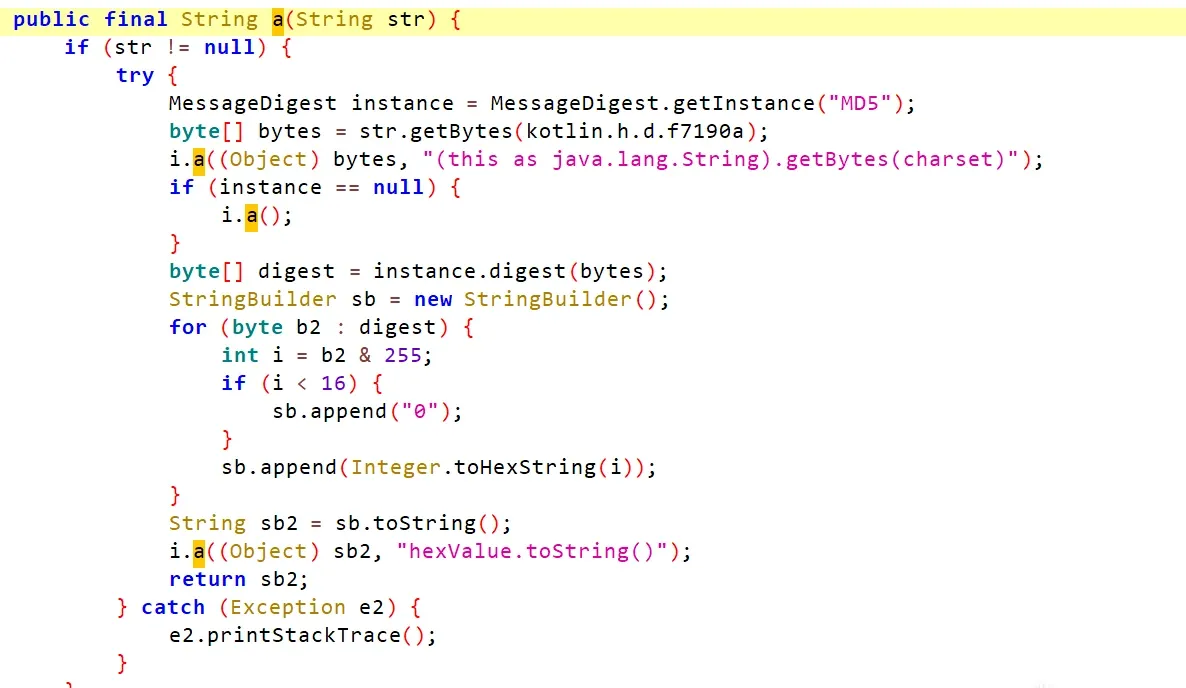
Figure 35 — the digest function
It’s computing an MD5 digest.
So the problem is that key-like suffix.
Right — the signature is wrong, so it also returned the wrong suffix, this time via the aaxx function rather than the ddmm function used by AES:

Figure 36 — aaxx
Same pattern: a wrong signature returns error, and only a correct one returns the real suffix.
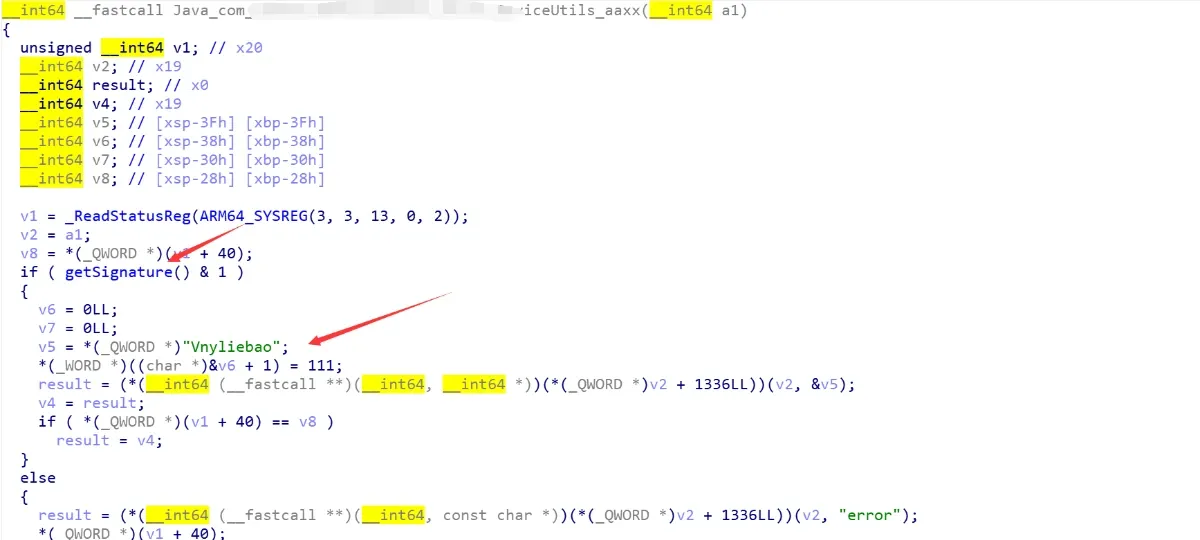
Figure 37 — the error suffix
How does it validate the signature locally?
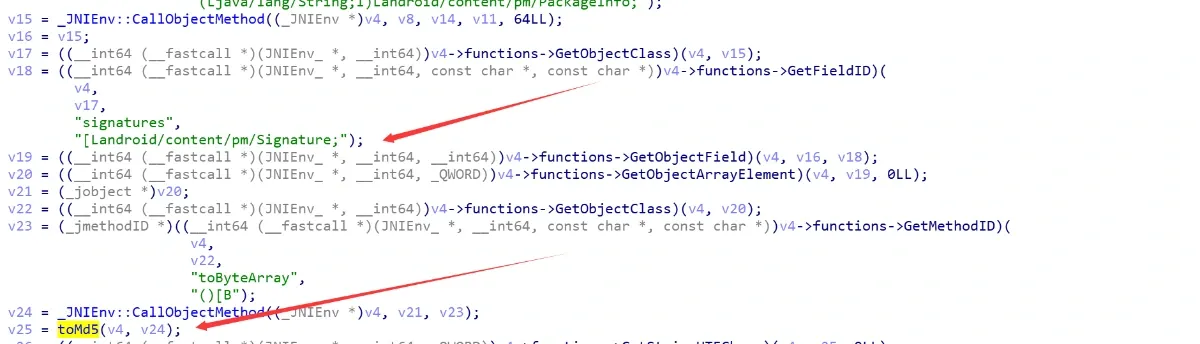
Figure 38 — local signature validation
It reflects signature, computes its MD5, and compares against a hardcoded SIGN_MD5.
So hook aaxx to return the correct value:

Figure 39 — hooking aaxx
Run again, and this time we get valid data:
The app UI is normal now — except it says “expired” :)
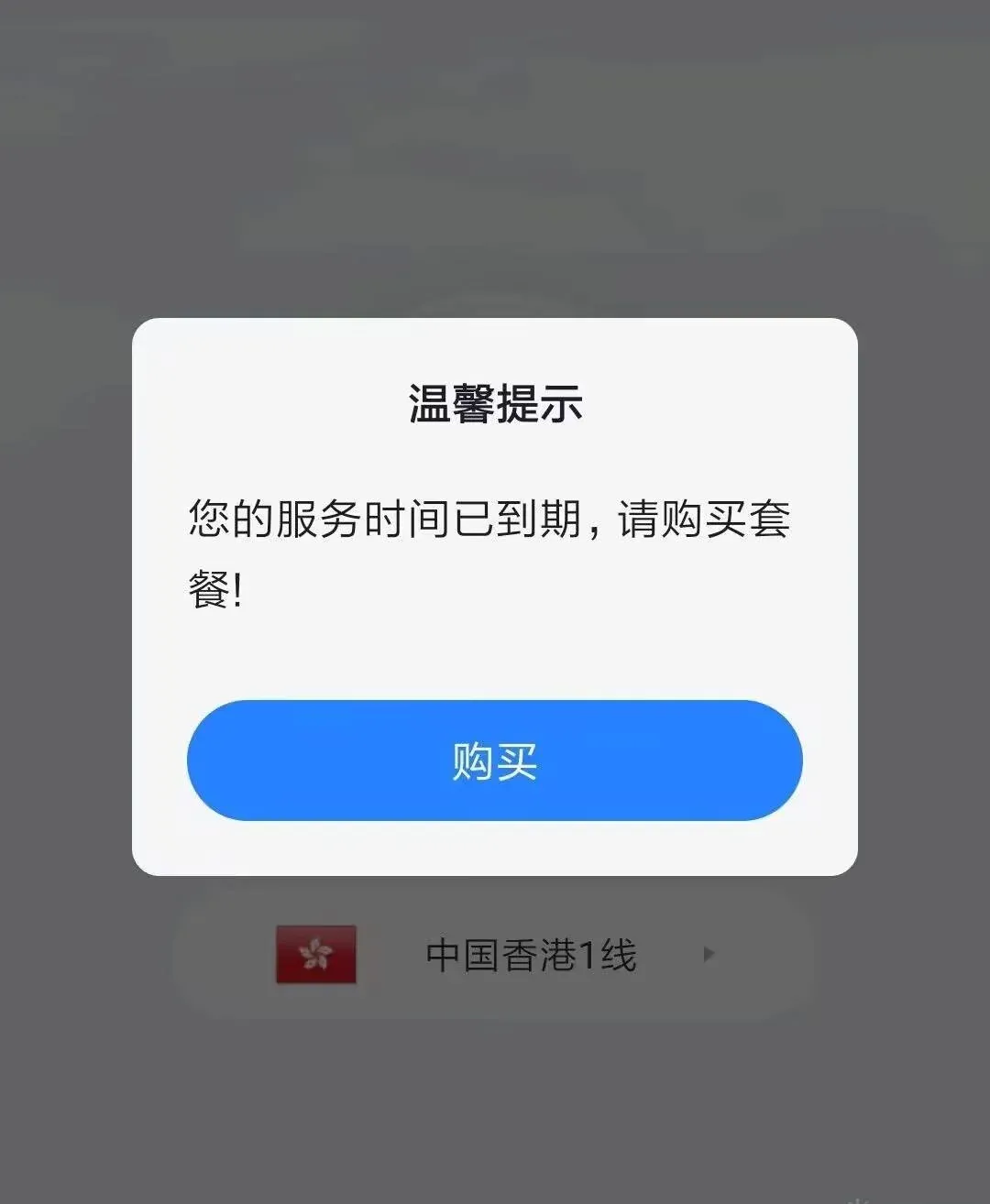
Figure 40 — valid data, but expired
5. Device-ID rotation
We’ve now bypassed root detection, proxy detection, and the signature check. But each device only gets two hours of free time. How does the app tell devices apart?
Apps usually track a device via a unique device identifier — the device ID.
There are many ways to compute a device id: read the Android device’s own unique identifier (disabled on newer Android), read the MAC address, generate a UUID, or generate a random string and stash it somewhere. On reinstall, the app first checks whether it previously stashed such a file; if so it reads it back as the device id, otherwise it creates one. This lets it track a device across uninstall/reinstall. If you can find that file and delete it, the next install sees a brand-new device.
First find where the device id lives. Search globally for deviceid:
Lots of hits — some from app, some from sdcard.
Follow an sdcard-related function:
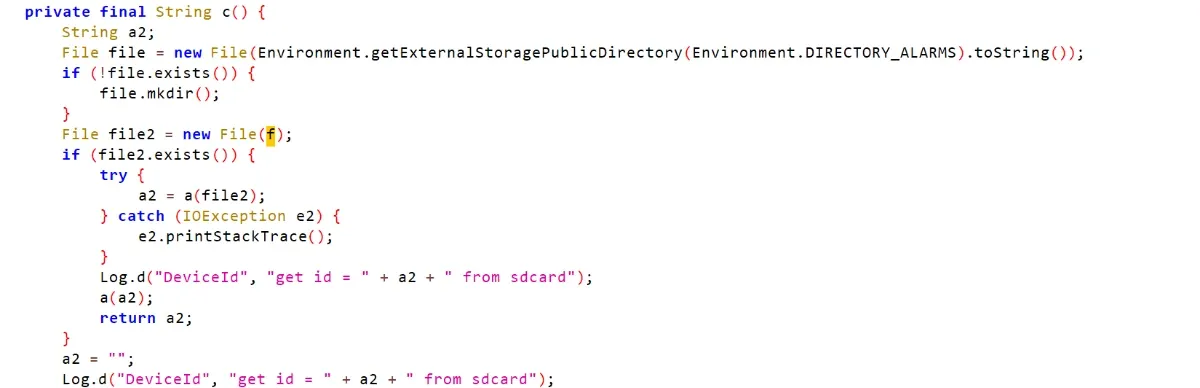
Figure 41 — reading device id from a file
It reads the device id from a file f. Check f’s path:
It’s in the alarms folder. Open it:
Sure enough, there’s a file under the sdcard’s alarm folder, and its contents are the device id used in requests.
Delete it and restart — the device id is unchanged. Is there another copy somewhere?
Recall the from app reference:
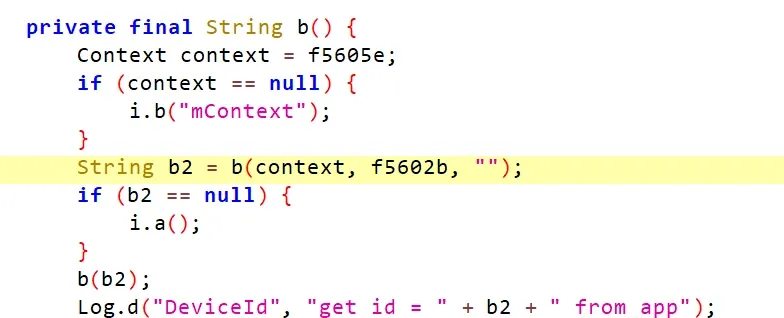
Figure 42 — the from-app variant
The device id comes from a b function:

Figure 43 — b()
Got it — it’s read from SharedPreferences.
SharedPreferences is internal app storage, while the sdcard is external storage. (For background, see Android data-storage docs.)
Open the SharedPreferences:

Figure 44 — SharedPreferences
There it is: customdeviceid.
See how the device id is obtained:
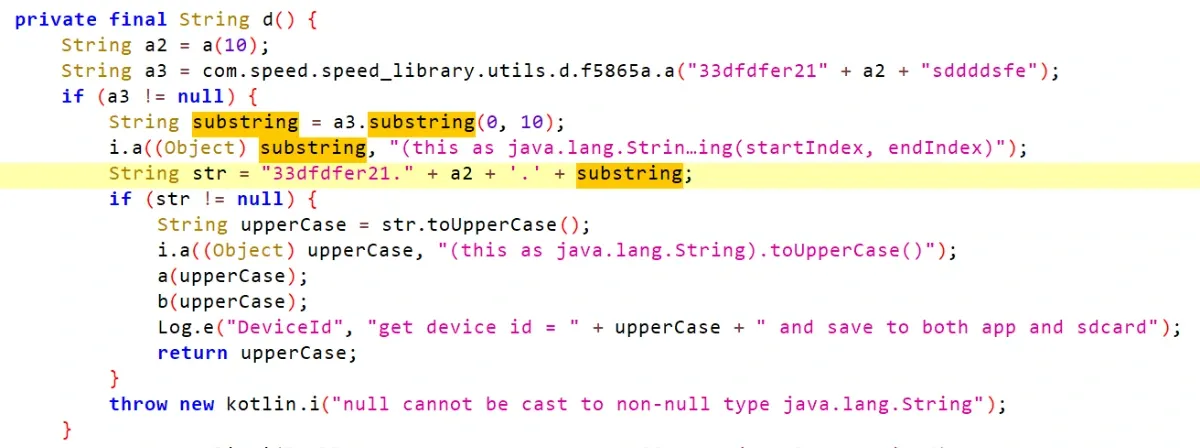
Figure 45 — device id generation
First a(10) produces a 10-character random string a2:
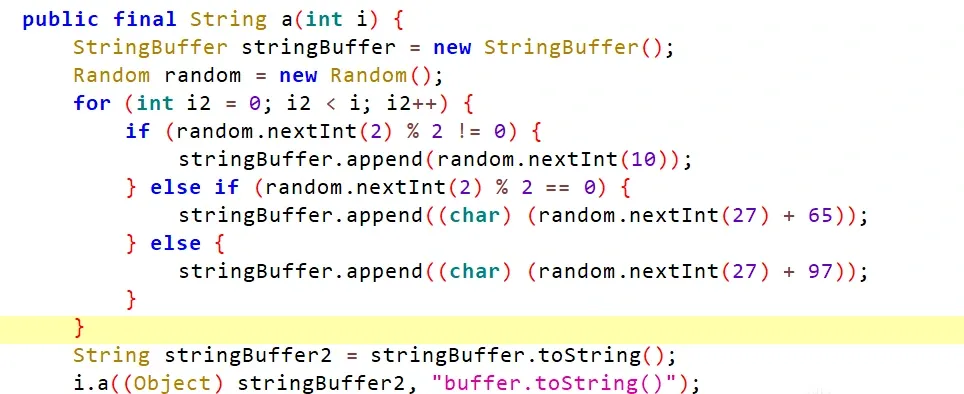
Figure 46 — the random prefix
Then it computes the MD5 of "33dfdfer21" + a2 + "sddddsfe" as a3.
Finally the device id is "33dfdfer21" + a3 + a3[0:10].
So the device id is randomly generated.
Each new device gets two free hours — 7200 seconds. What if we regenerate the device id every ~7000 seconds?
See where the app fetches this device id and sends it to the server. Earlier, one of the okhttp pipeline stages adds HTTP headers:
Figure 47 — the header interceptor again
The device id comes from an a() method:
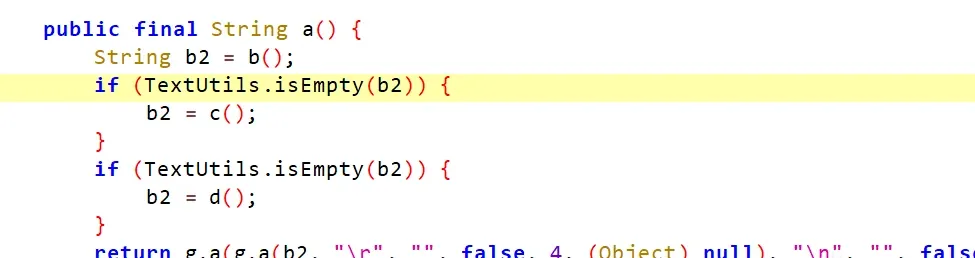
Figure 48 — the device-id accessor
It returns a string. No need to trace further — it’s either from the app or from the sdcard. We can just hook it here.
In principle, all we need is a string generator that stays stable within a two-hour window. I use timestamp-divided-by-7000:
Write a small function, compile it to smali with Android Studio, and insert the smali right before the a() function returns:
The random-device-id smali:
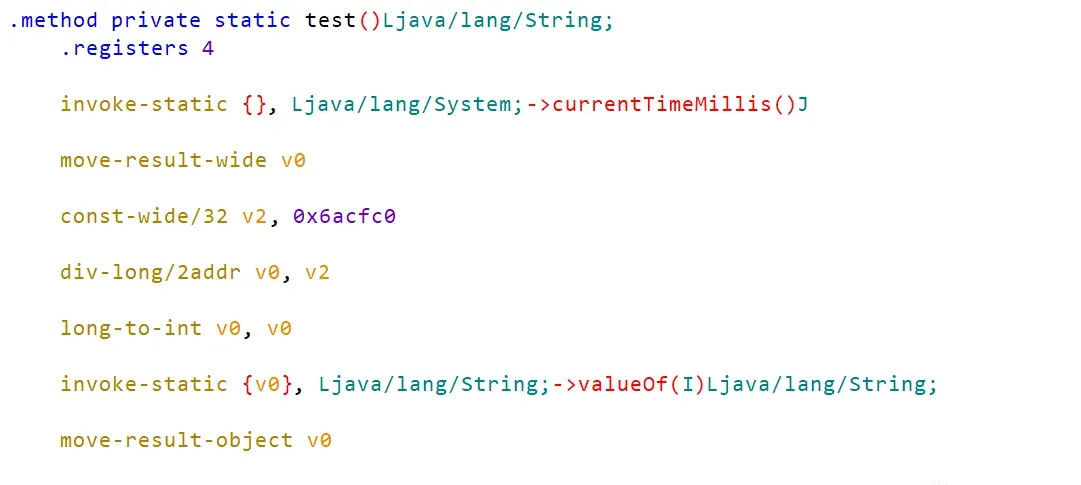
Figure 49 — the device-id smali
Inserted before a() returns:
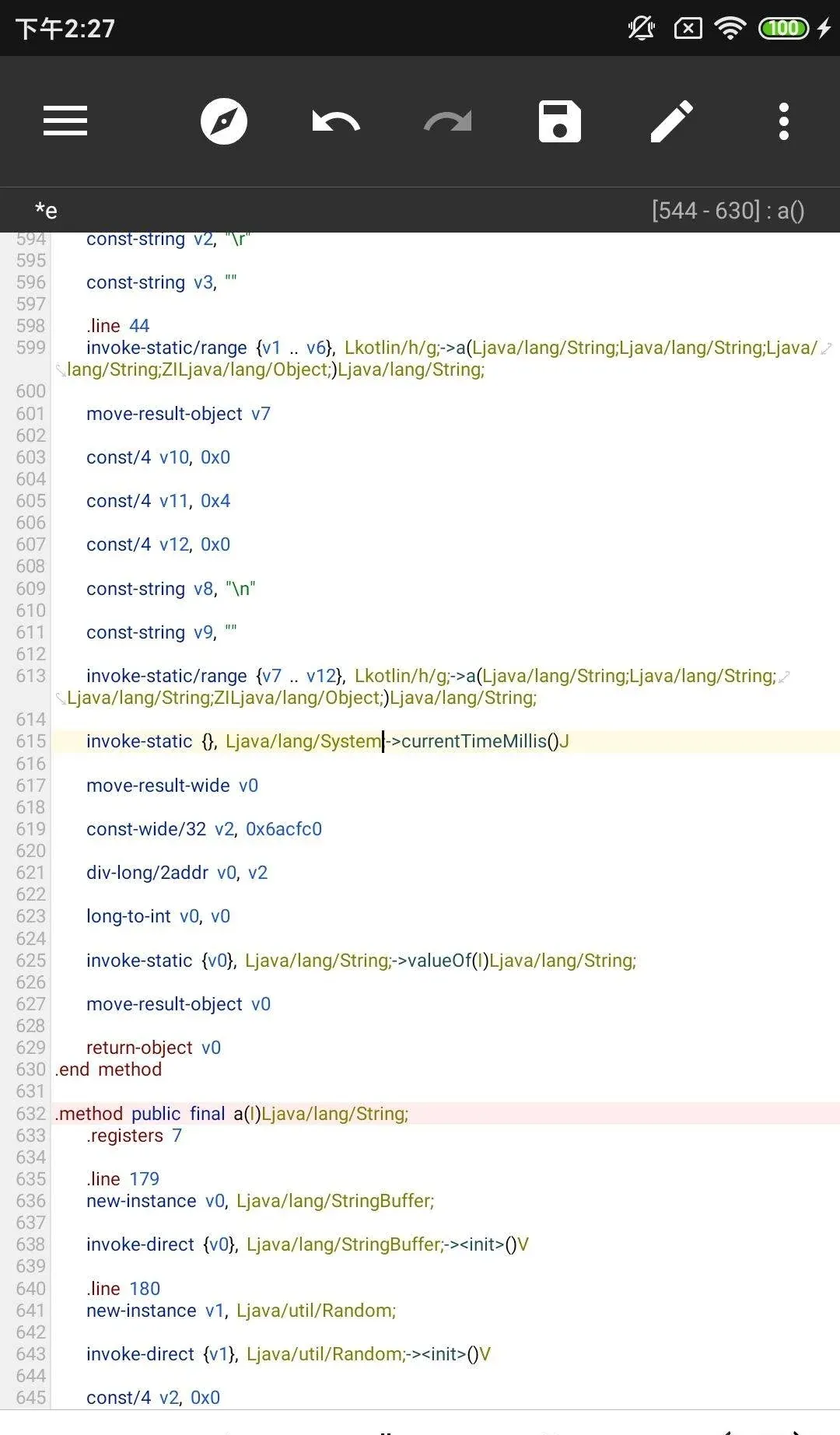
Figure 50 — inserted before the return
Now every couple of hours the app presents a fresh device id, so to the server it looks like a new device installing the app again:
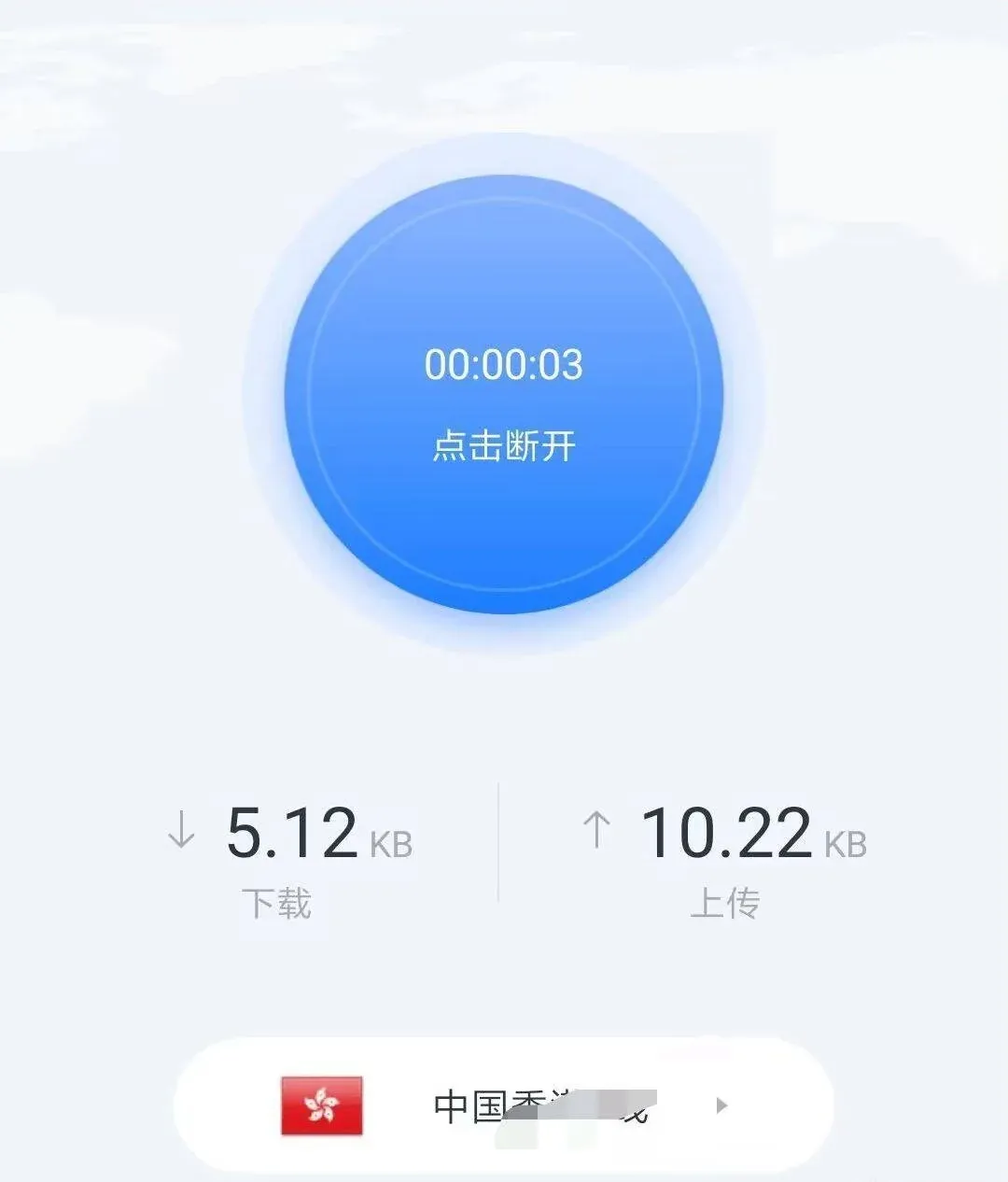
Figure 51 — running with rotation
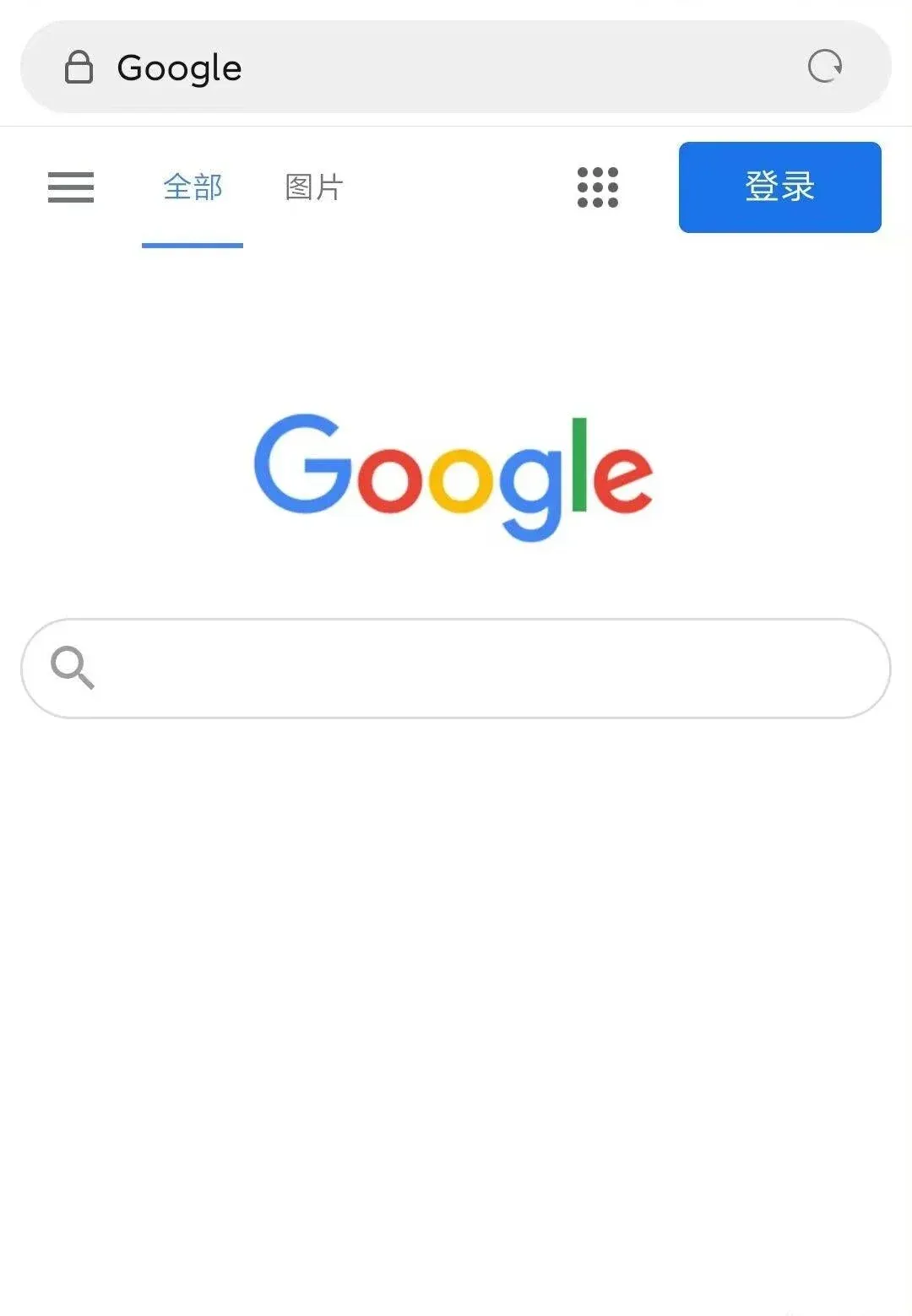
Figure 52 — result
6. Closing thoughts
On the Android protection side alone, this app does everything you’d expect — but every move is fairly standard.
The one genuinely nice touch is splitting the key into segments and returning a wrong key when the signature is wrong — a stronger guard against tampering than the usual single-key approach.
As always, this was done for learning and research — a complete walkthrough of a real protection stack, from root detection through to device-ID tracking and rotation.
Colin Xiao — I take on contract reverse-engineering work, and writeups like this are how I show what I can do. If you need help with anything in this space — including but not limited to the areas I cover above — I’m available. No project is too big or too small — if it’s reverse engineering and I can do it, I’ll take it. DM me on X (@colinxiao_lab) or Telegram (@ColinXiao666).
Get in touch